

Manage Functions
Learn how to manage your serverless functions through the web interface.
Accessing Functions
Navigate to Functions page from the sidebar to see all your functions:
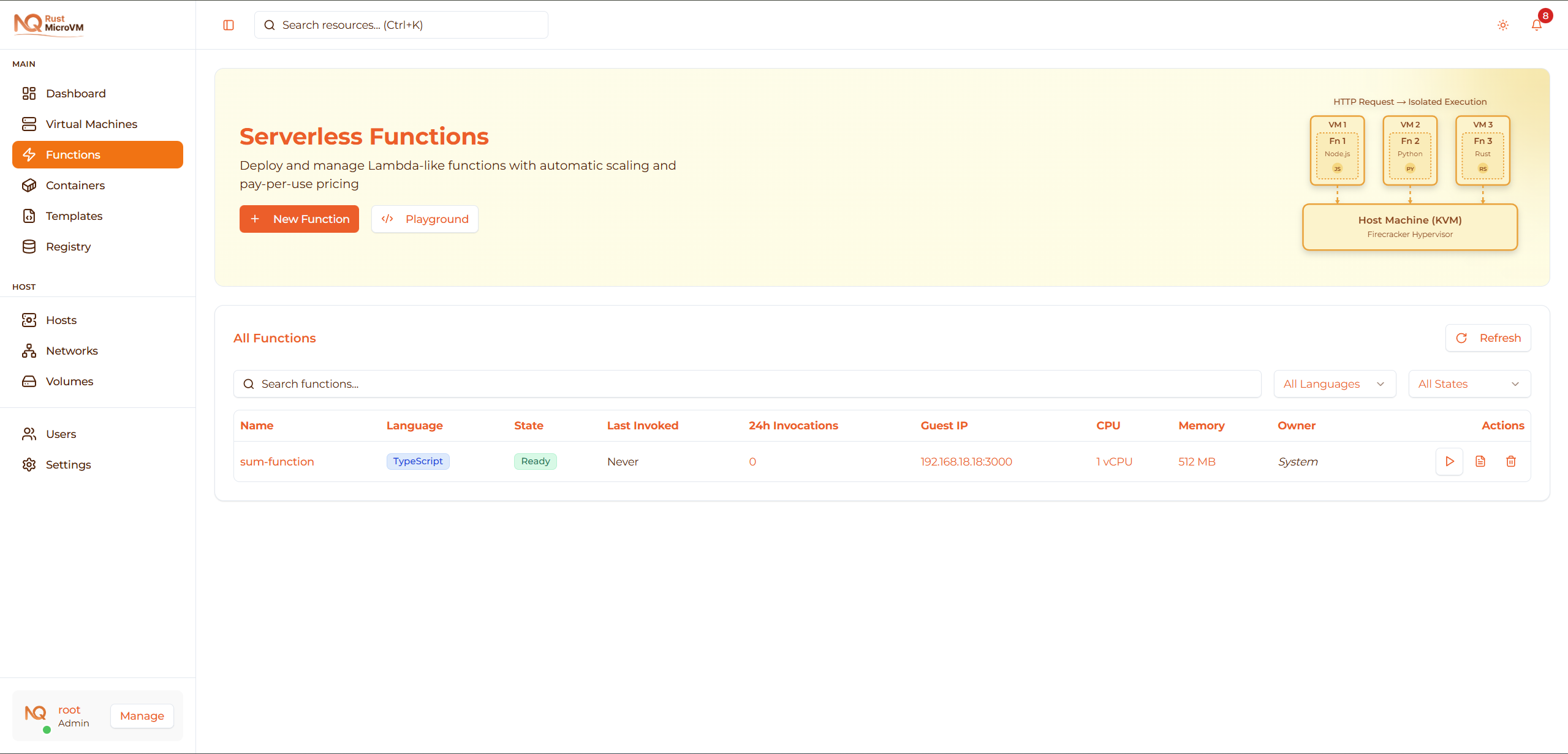
The Functions page provides:
- New Function button - Create new functions
- Playground button - Experiment without creating
- Refresh button - Update function list
- Search bar - Find functions by name or ID
- Runtime filter - Filter by language (Python, JavaScript, TypeScript)
- State filter - Filter by Ready, Creating, Deploying, Error
- Function table - List of all functions with details and actions
Function States
Functions can be in several states:

| State | Description | Actions Available |
|---|---|---|
| Ready | Function is deployed and ready | Invoke, View Logs, Delete |
| Creating | Function is being created | None (wait) |
| Deploying | microVM is being provisioned | None (wait) |
| Error | Function failed to deploy | View Logs, Delete |
State transitions:
- Creating → Deploying → Ready
- Any state → Error (if something fails)
Filtering and Searching Functions
Search by Name or ID
Use the search bar to quickly find functions:

- Type function name (e.g., “hello”)
- Or type function ID
- Results filter instantly as you type
- Search is case-insensitive
Filter by Runtime
Filter by programming language:

Options:
- All Languages - Show all functions (default)
- Python - Only Python functions
- JavaScript (Bun) - Only JavaScript functions
- TypeScript (Bun) - Only TypeScript functions
Filter by State
Filter by function state:
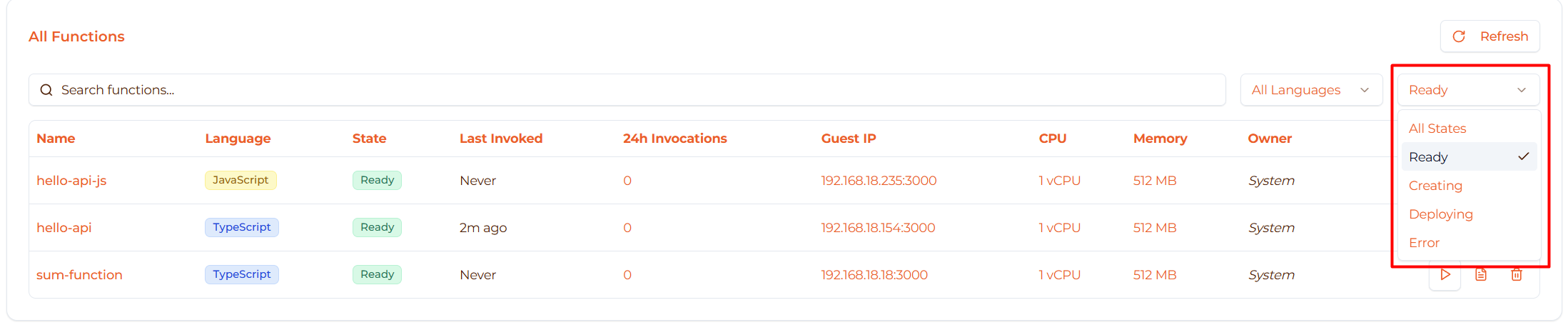
Options:
- All States - Show all functions (default)
- Ready - Only ready functions
- Creating - Functions being created
- Deploying - Functions being deployed
- Error - Failed functions
Tip: Combine search and filters for precise results.
Function Table Information
The Functions table shows detailed information:

Columns Explained
- Name - Function name (click to open detail page)
- Language - Runtime badge (Python, JavaScript, TypeScript)
- State - Current status with colored badge
- Last Invoked - Relative time (e.g., “2 hours ago”) or “Never”
- 24h Invocations - Number of invocations in last 24 hours
- Guest IP - IP address and port of function microVM
- CPU - vCPU count (e.g., “1 vCPU”)
- Memory - Allocated memory in MB (e.g., “512 MB”)
- Owner - Who created the function:
- “You” (green) - Your function
- “Other User” - Another user’s function
- “System” - System-created function
- Actions - Action buttons (Invoke, Logs, Delete)
Pagination
If you have more than 10 functions:
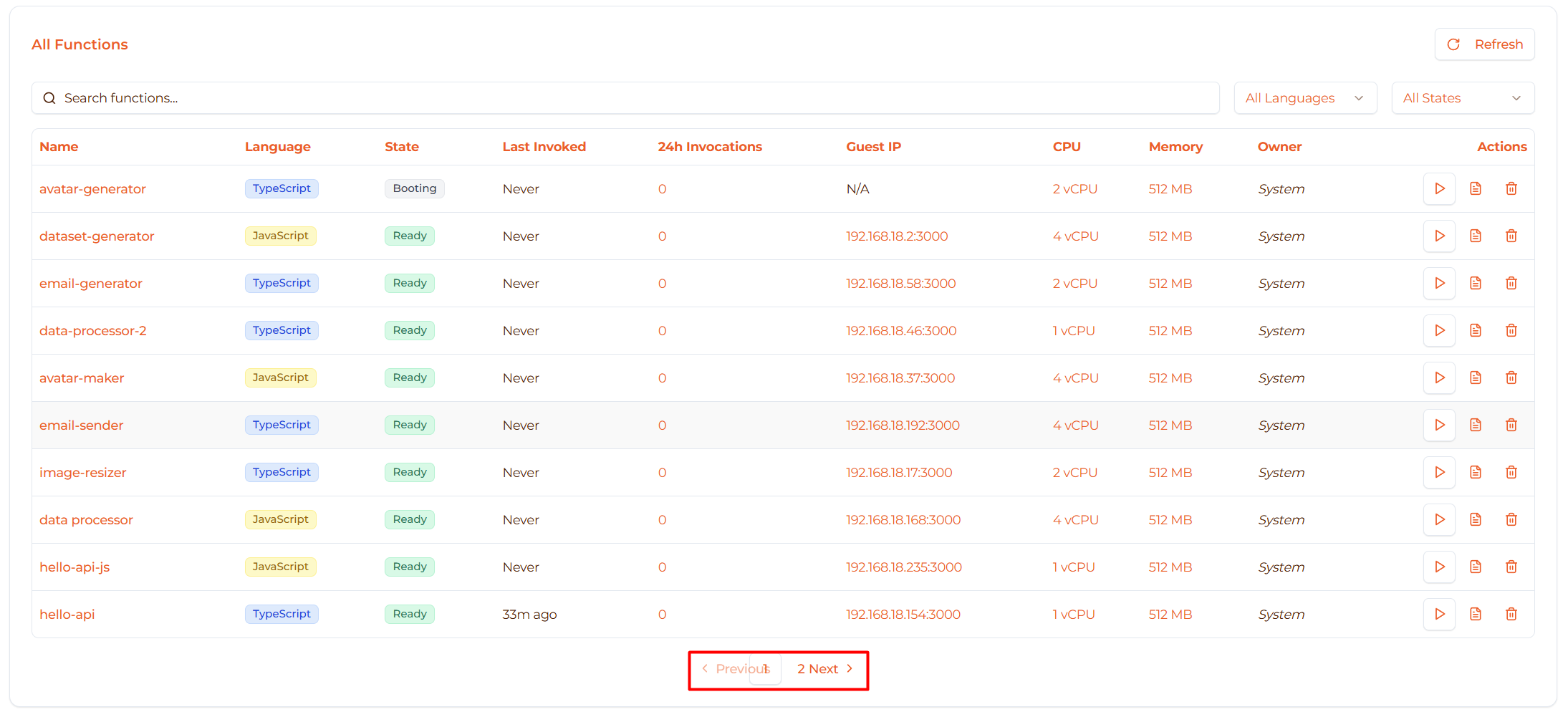
- 10 functions per page
- Click page numbers to navigate
- Use Previous/Next arrows
Invoking Functions
Invoke from Functions List
To test a function, click the Invoke button (▶ Play icon):

Steps:
- Locate your function in the table
- In Actions column, click Invoke button
- Invoke dialog opens
Invoke Dialog
The invoke dialog lets you test your function with custom input:
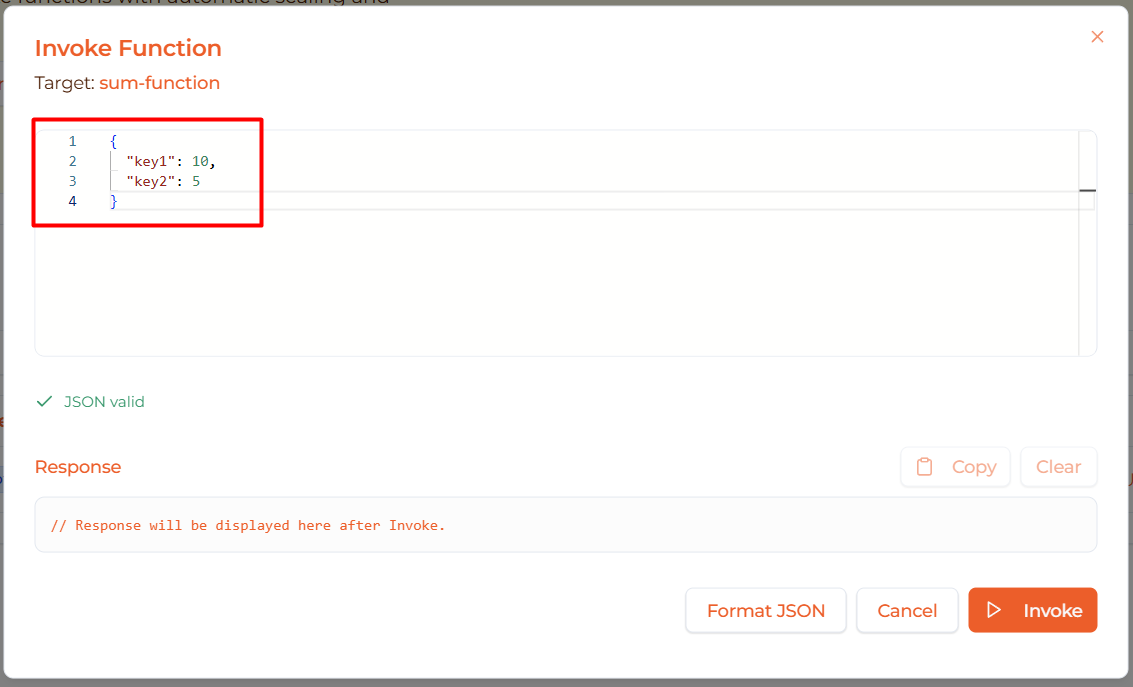
1. Enter JSON Payload
Write or paste JSON payload in the Monaco editor:

Example payloads:
  {
  "name": "Alice",
  "age": 30
}
  {
  "operation": "add",
  "a": 10,
  "b": 5
}
2. Validate JSON
The editor validates JSON in real-time:
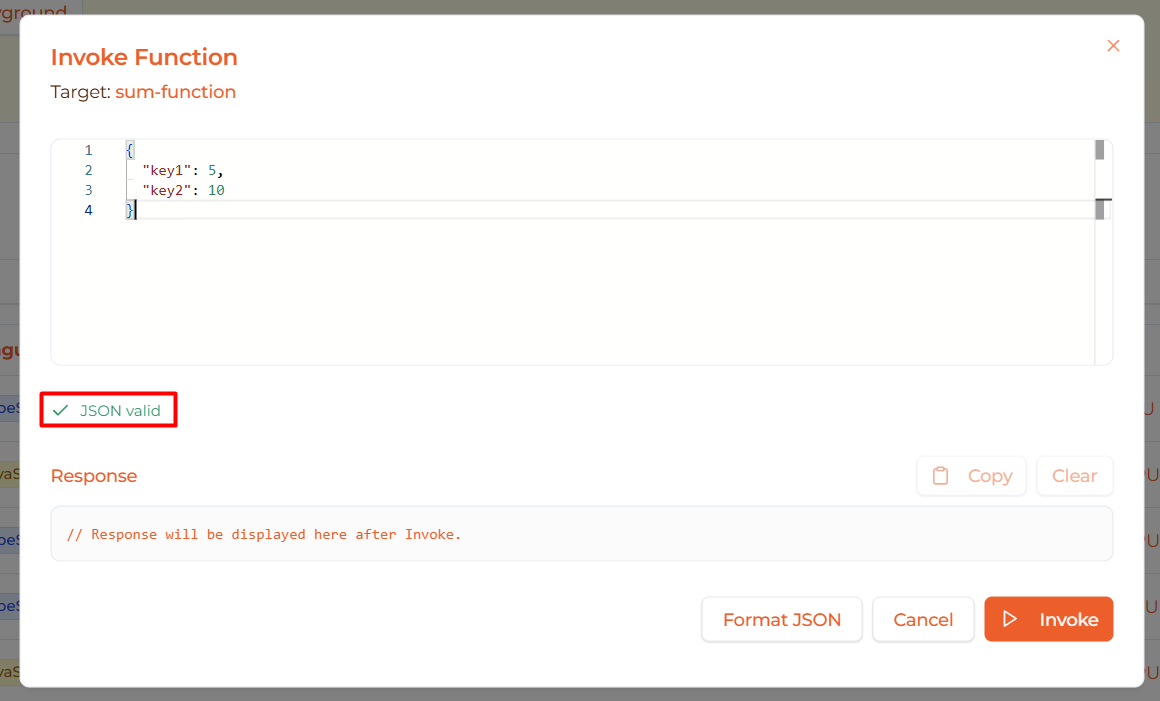
✅ “JSON valid” (green) - Ready to invoke
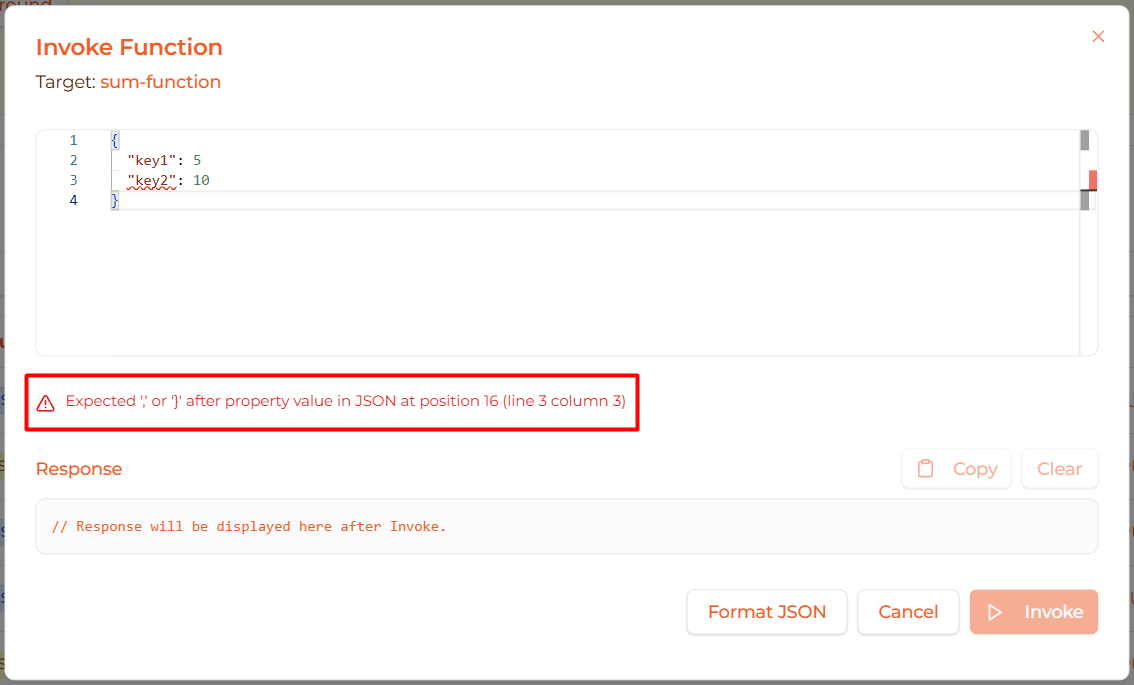
❌ “Error: Unexpected token…” (red) - Fix JSON first
Tip: Click Format JSON button to auto-format.
3. Click Invoke
Click the Invoke button to execute:
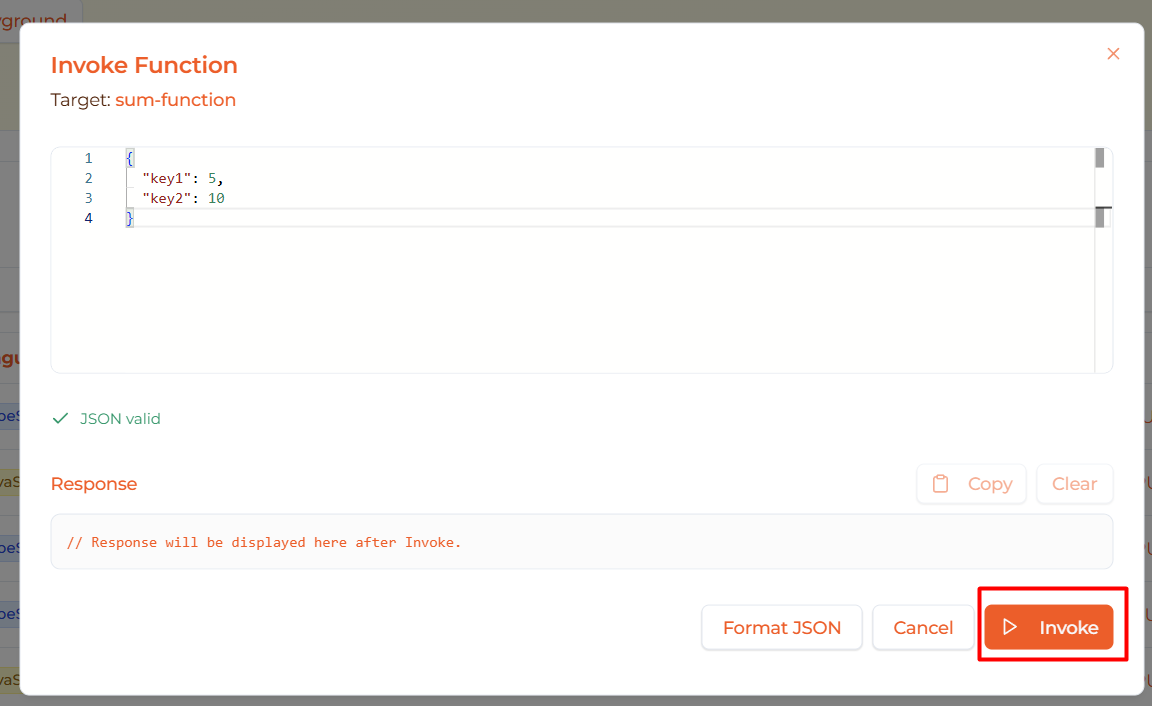
The function will execute and show response:
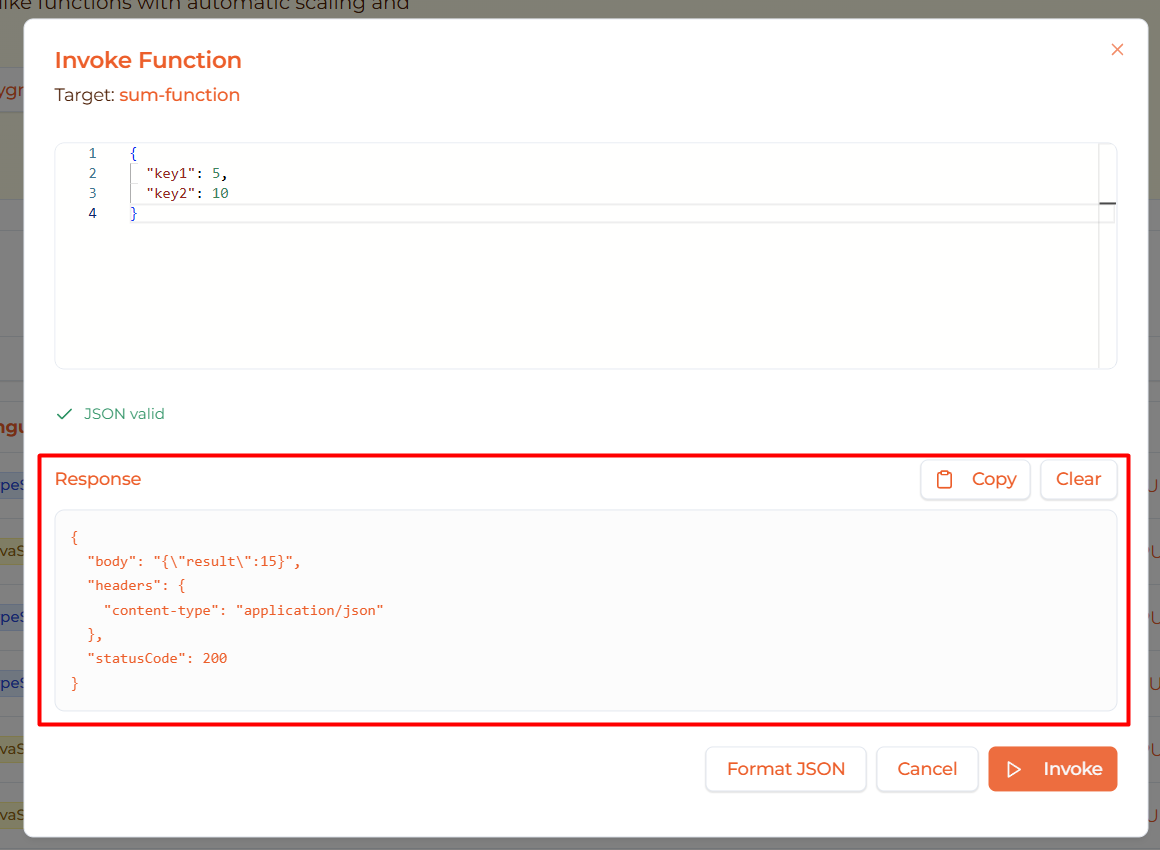
4. View Response
The response panel shows:
Response body:
  {
  "statusCode": 200,
  "headers": {
    "content-type": "application/json"
  },
  "body": "{\"result\": 15}"
}
Response actions:
- Copy - Copy response to clipboard
- Clear - Clear response panel
Close Dialog
Click Cancel to close the invoke dialog.
Note: The payload is saved per-function, so reopening will show your last input.
Viewing Function Logs
To debug or monitor function executions:
Access Logs
Click the Logs button (📄 FileText icon) in the Actions column:
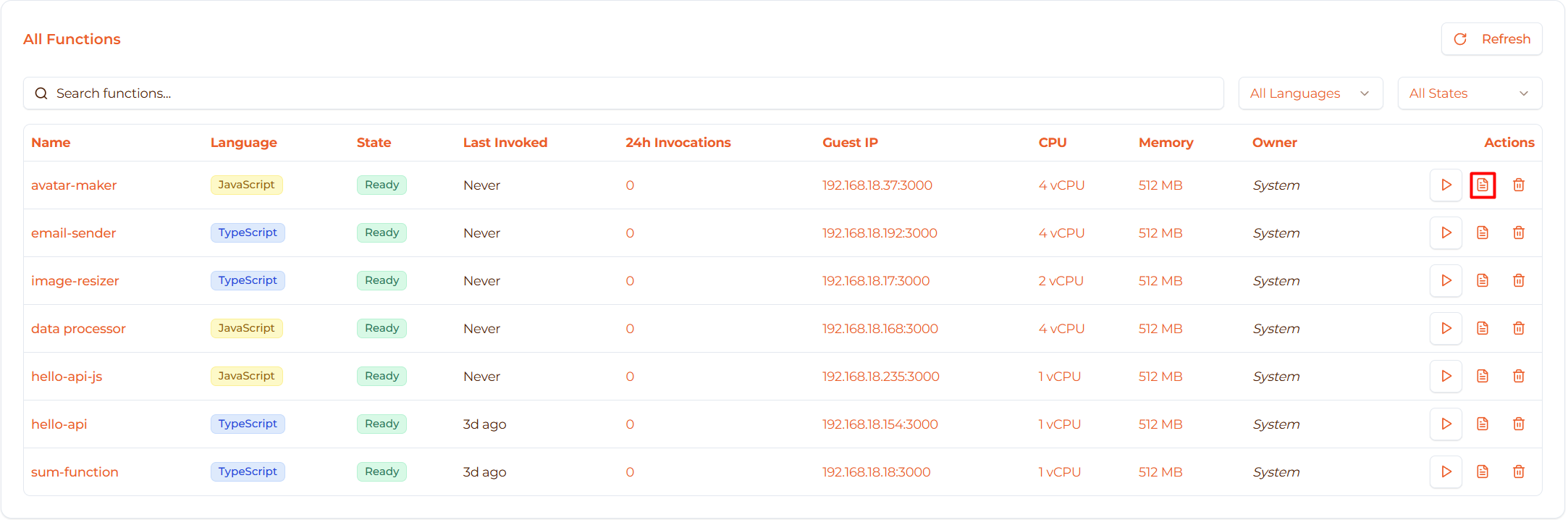
This opens the Function Detail page on the Logs tab.
See View Logs for detailed logging information.
Updating Functions
To modify an existing function:
1. Open Function Detail Page
Click the function name in the table:
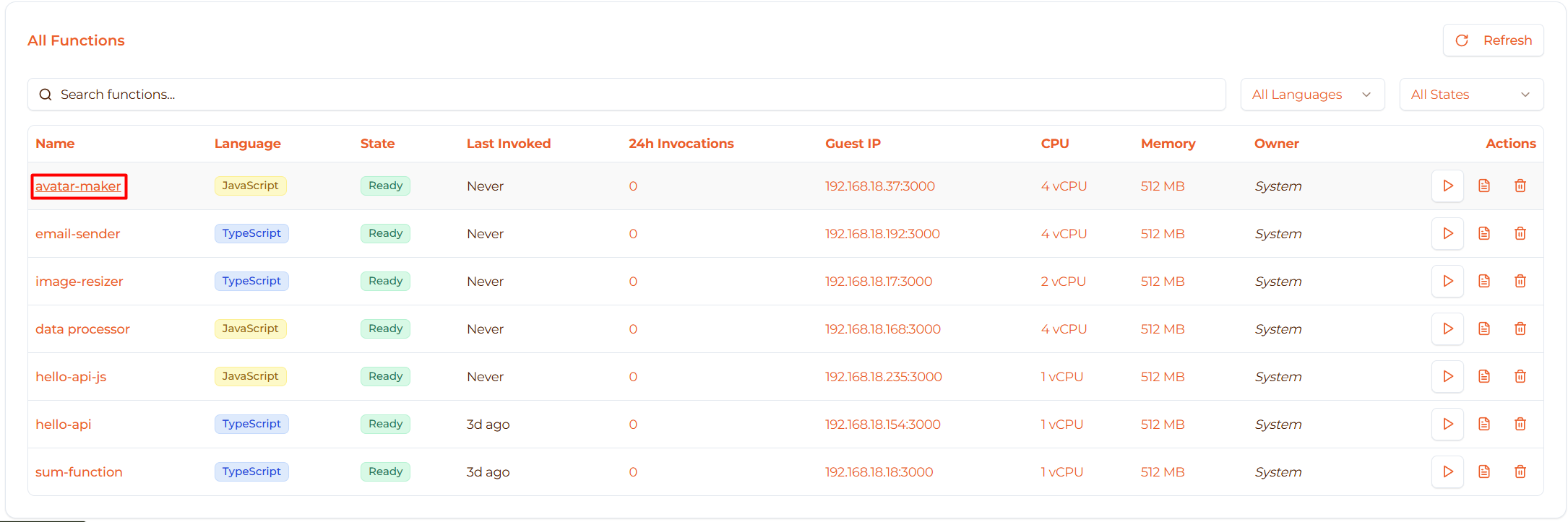
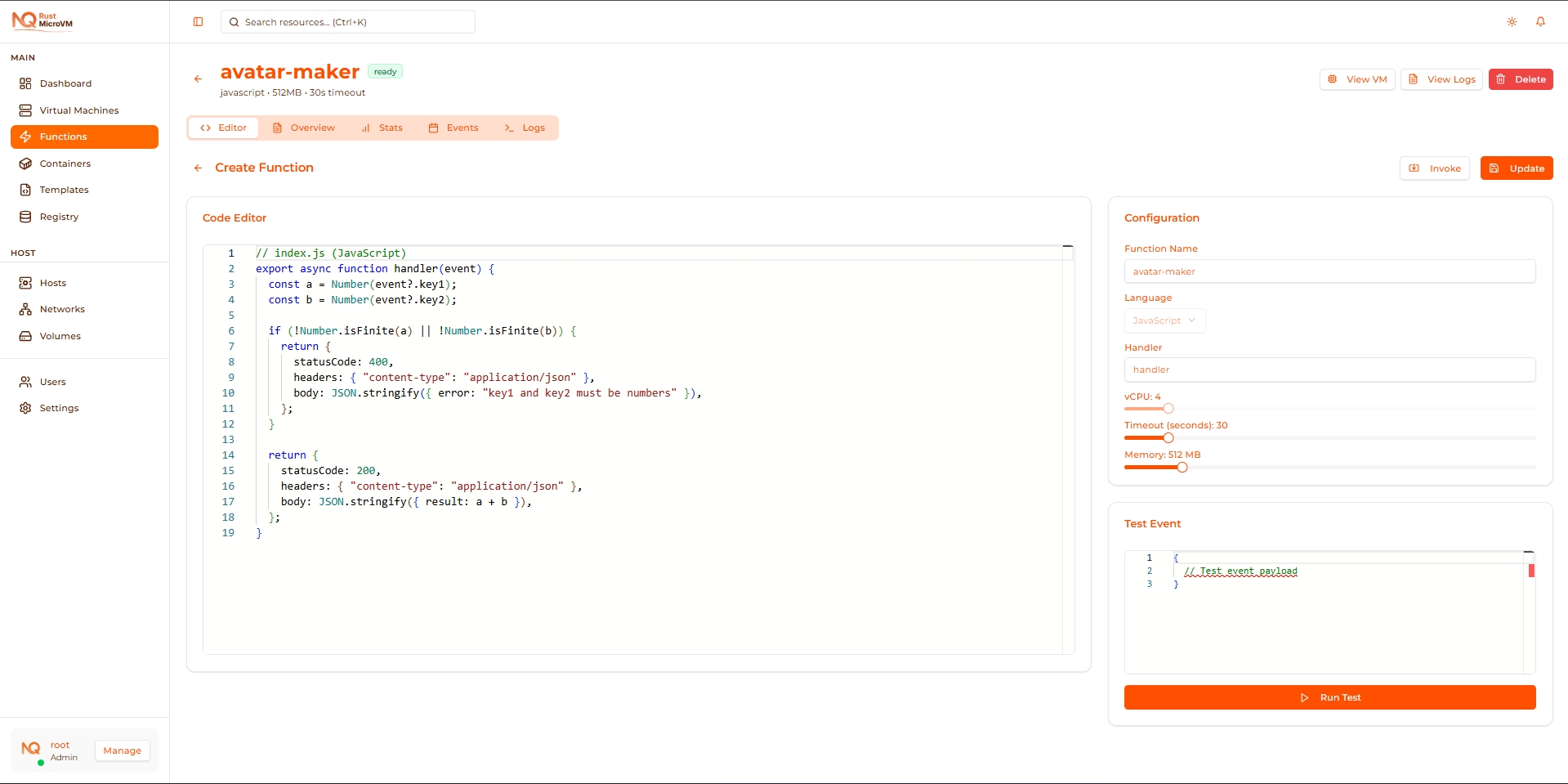
2. Edit Function
The function editor opens with current code:
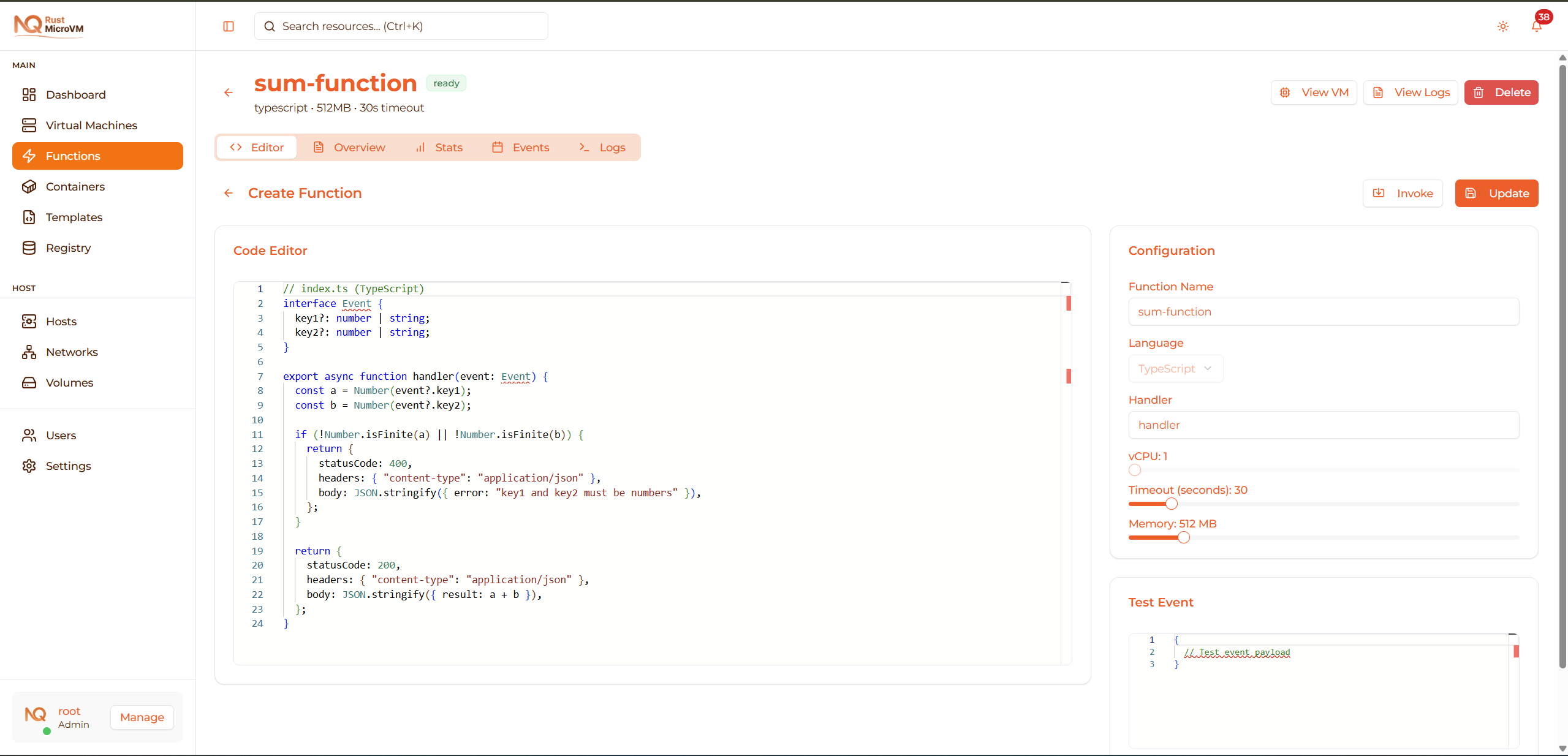
3. Make Changes
You can update:
- ✅ Name - Change function name
- ✅ Code - Edit function code
- ✅ Handler - Change entry point
- ✅ Timeout - Adjust timeout seconds
- ✅ Memory - Change memory allocation
Cannot change:
- ❌ Runtime - Cannot change after creation (delete and recreate instead)
- ❌ vCPU - Fixed at creation time
4. Test Changes
Use the Run Test section to test your changes:
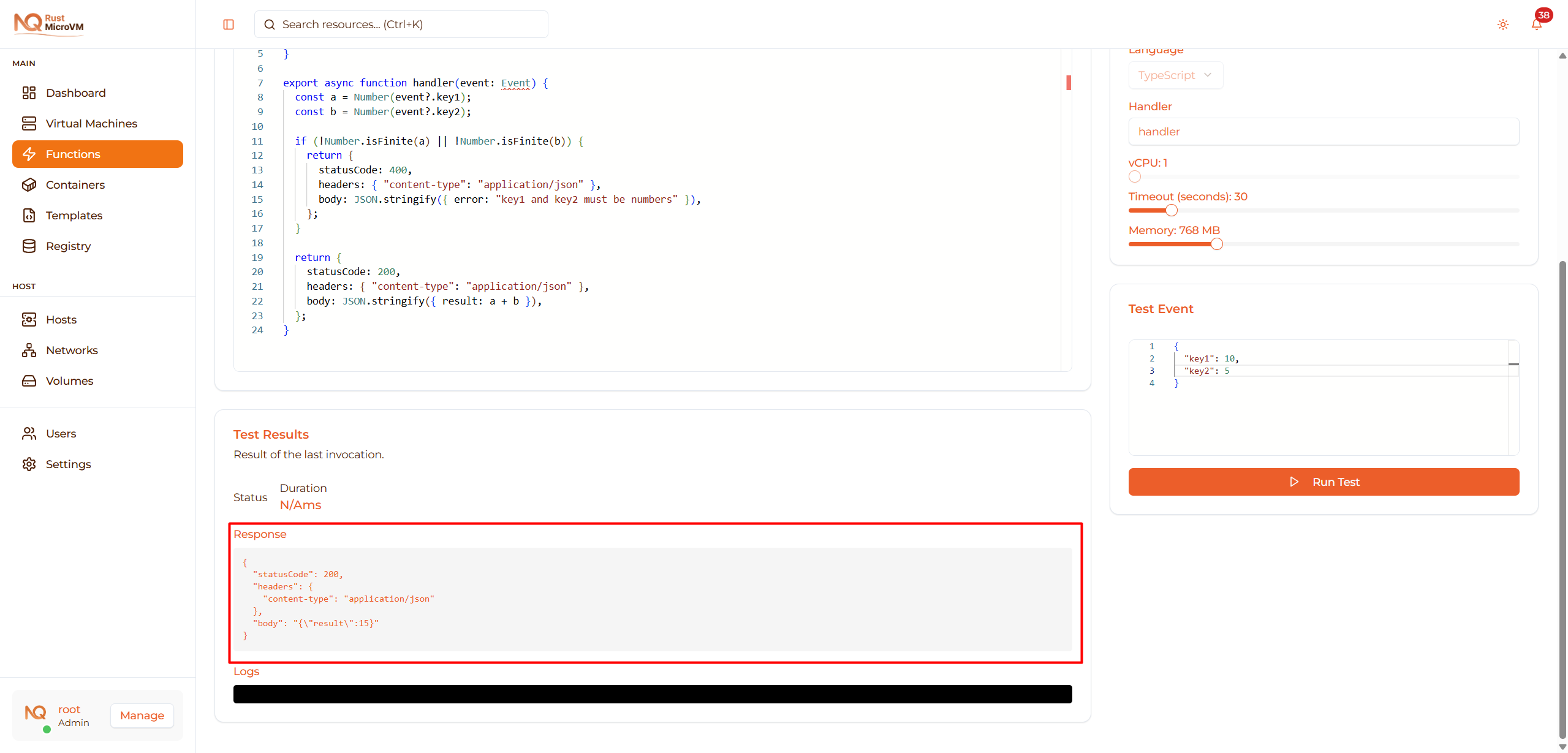
5. Save Updates
Click Save to deploy changes:
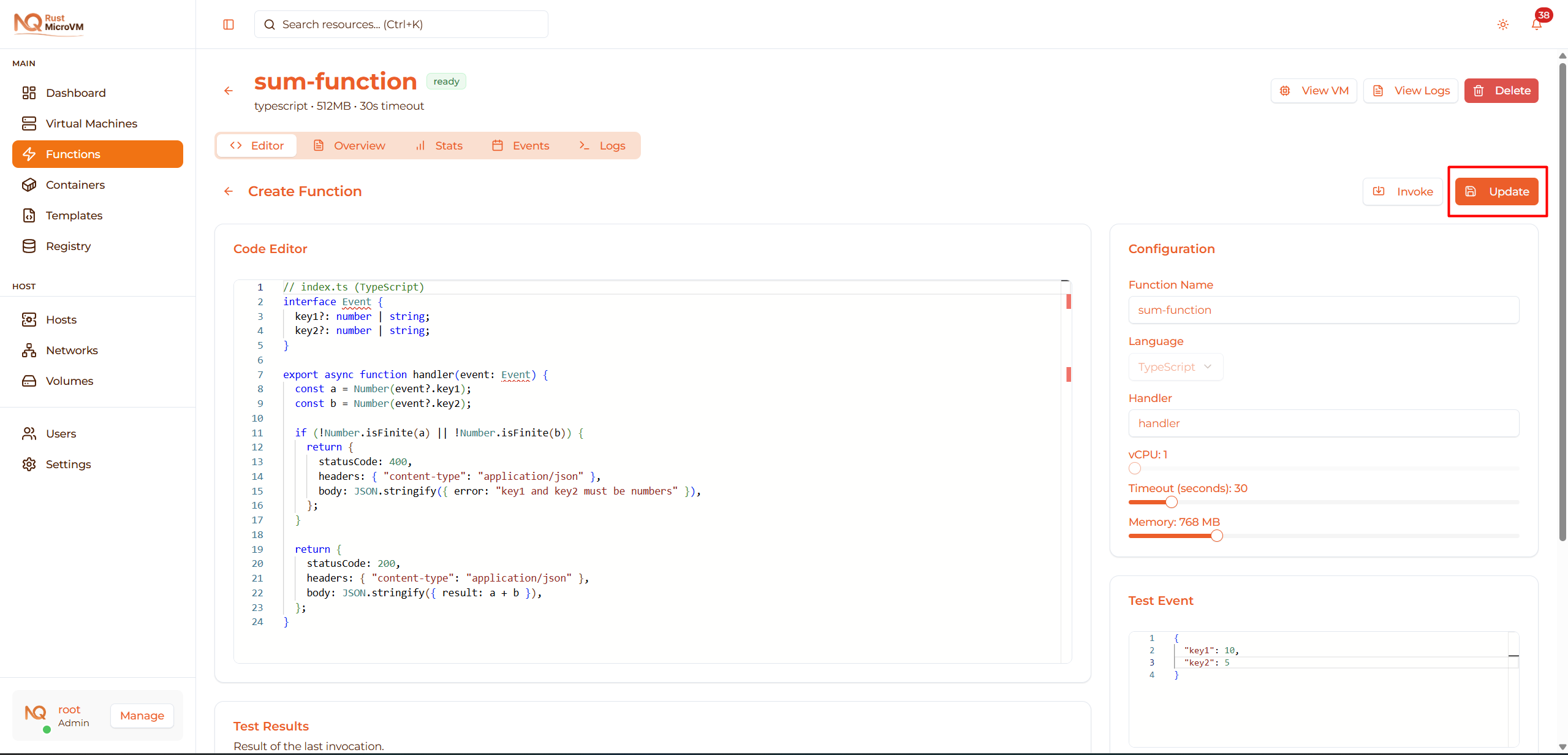
The function will be redeployed with new code.
Note: Function may be briefly unavailable during update (2-5 seconds).
Deleting Functions
⚠️ Warning: Deletion is permanent and cannot be undone!
Delete a Function
From the Functions list page:
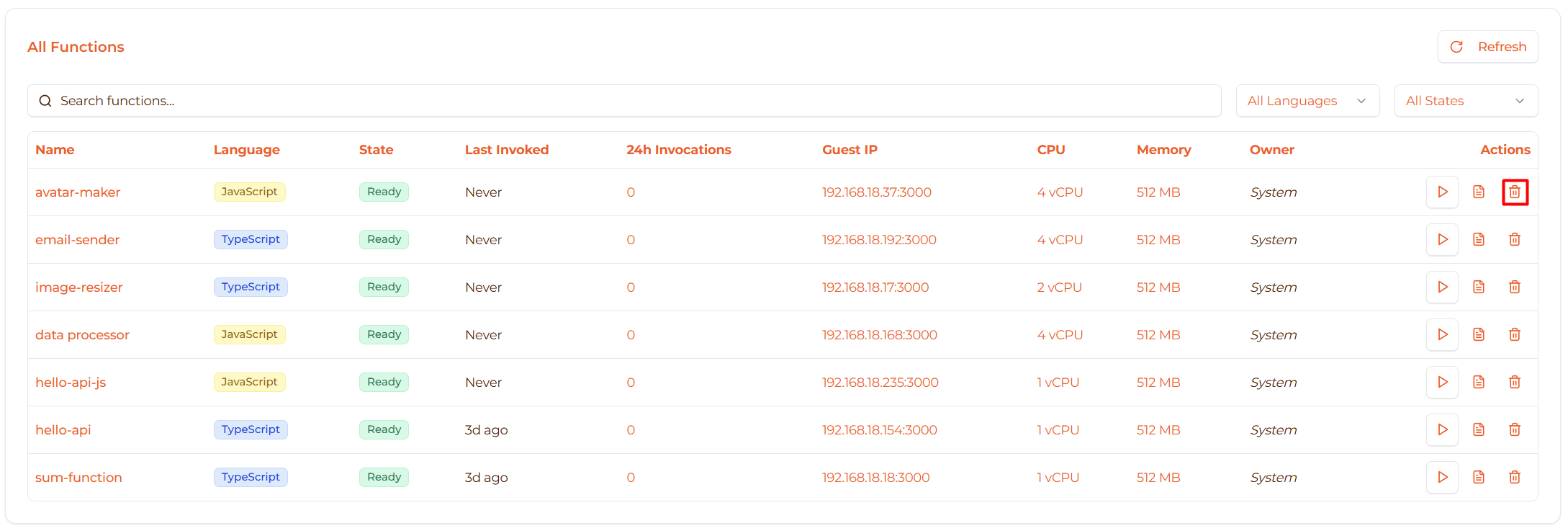
Steps:
- In the Actions column, click the Delete button (🗑️ Trash icon)
- A confirmation dialog will appear:
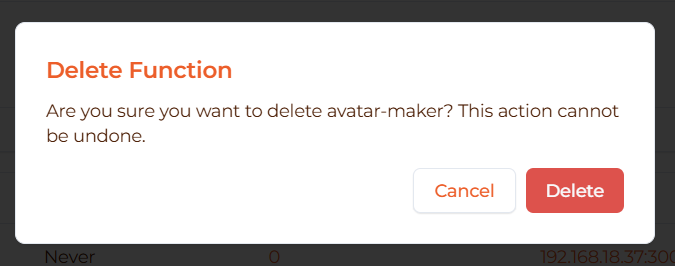
- Click Delete to confirm
The function will be permanently removed.
What Gets Deleted
When you delete a function:
- ✅ Function code - All code removed
- ✅ Configuration - Settings deleted
- ✅ microVM - VM destroyed and resources freed
- ✅ Logs - Execution logs removed
- ✅ Invocation history - Stats cleared
Time: Usually instant (< 1 second)
Success Notification
After deletion, you’ll see a success message:
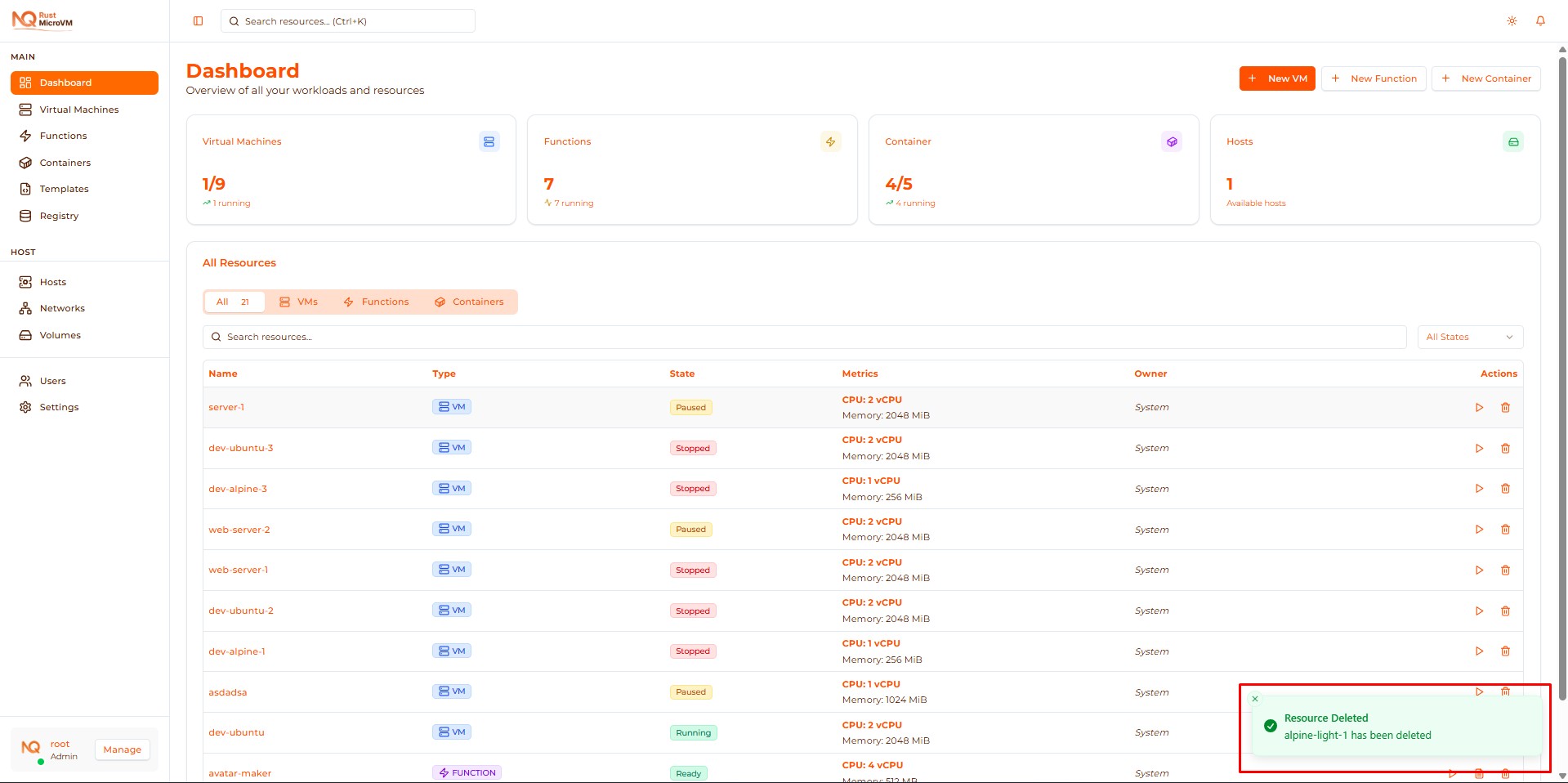
“Function Deleted - [function-name] has been deleted successfully”
The function will be removed from the Functions list.
Function Detail Page
Click a function name to open the detail page:
Overview Tab
Shows function information:
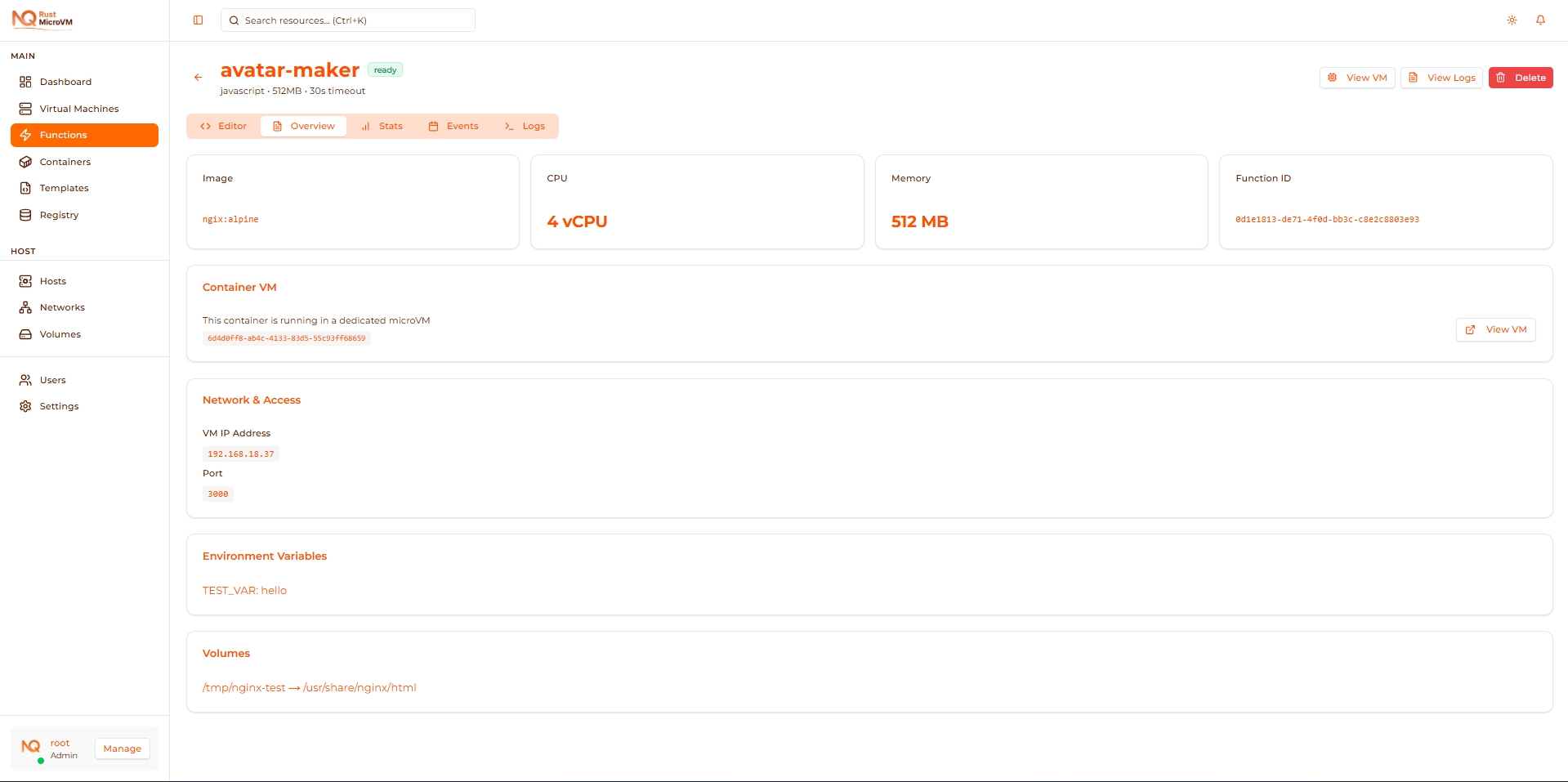
Information displayed:
- Function name and ID
- Runtime and state badge
- vCPU, Memory, Timeout
- Guest IP address
- Creation date
- Last invoked time
- Invocation count (24h, 7d, 30d)
Actions available:
- Invoke - Test function
- Edit - Modify function
- Delete - Remove function
Logs Tab
View execution logs and errors:
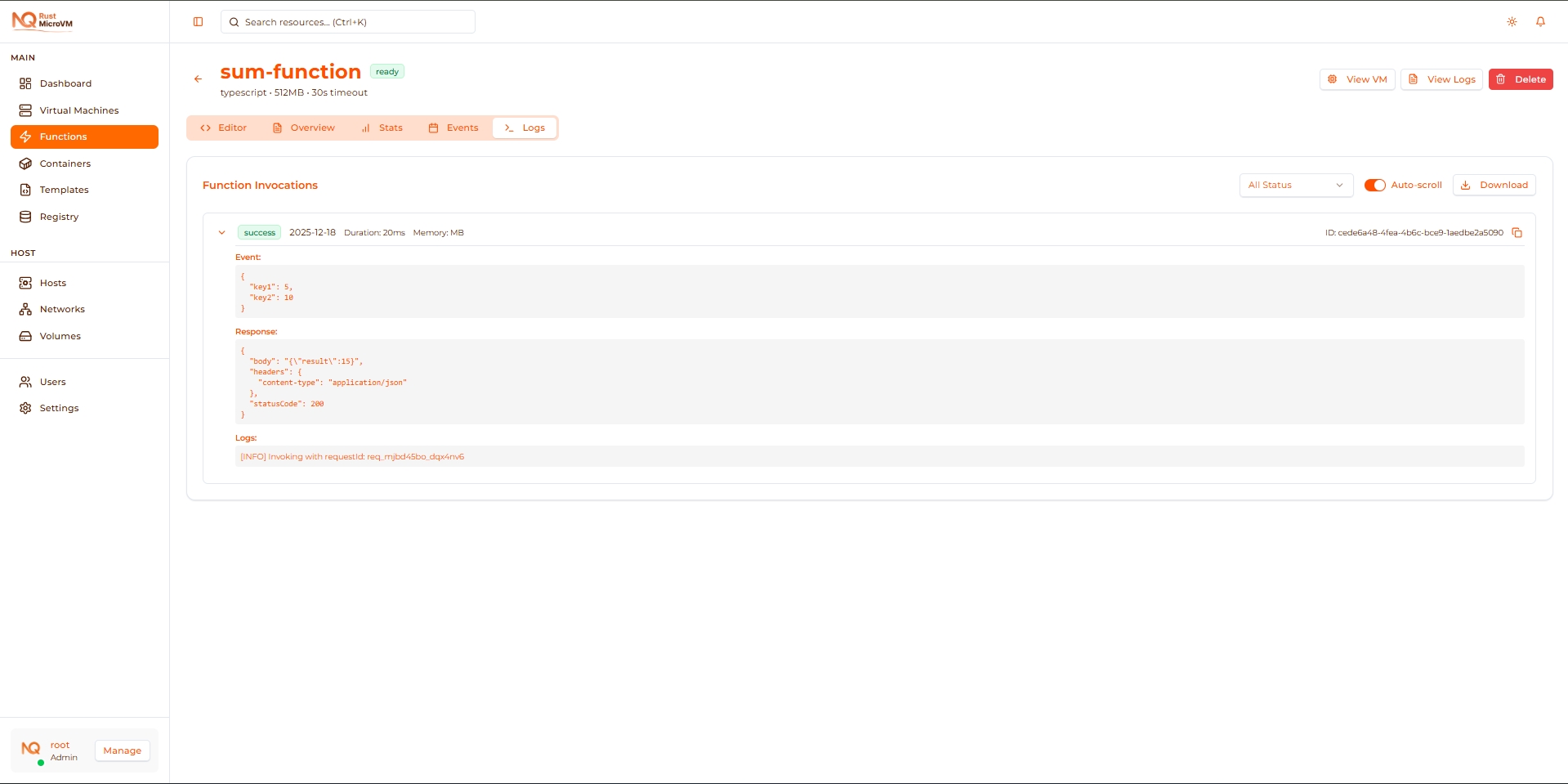
See View Logs for details.
Code Tab (if available)
View current function code:
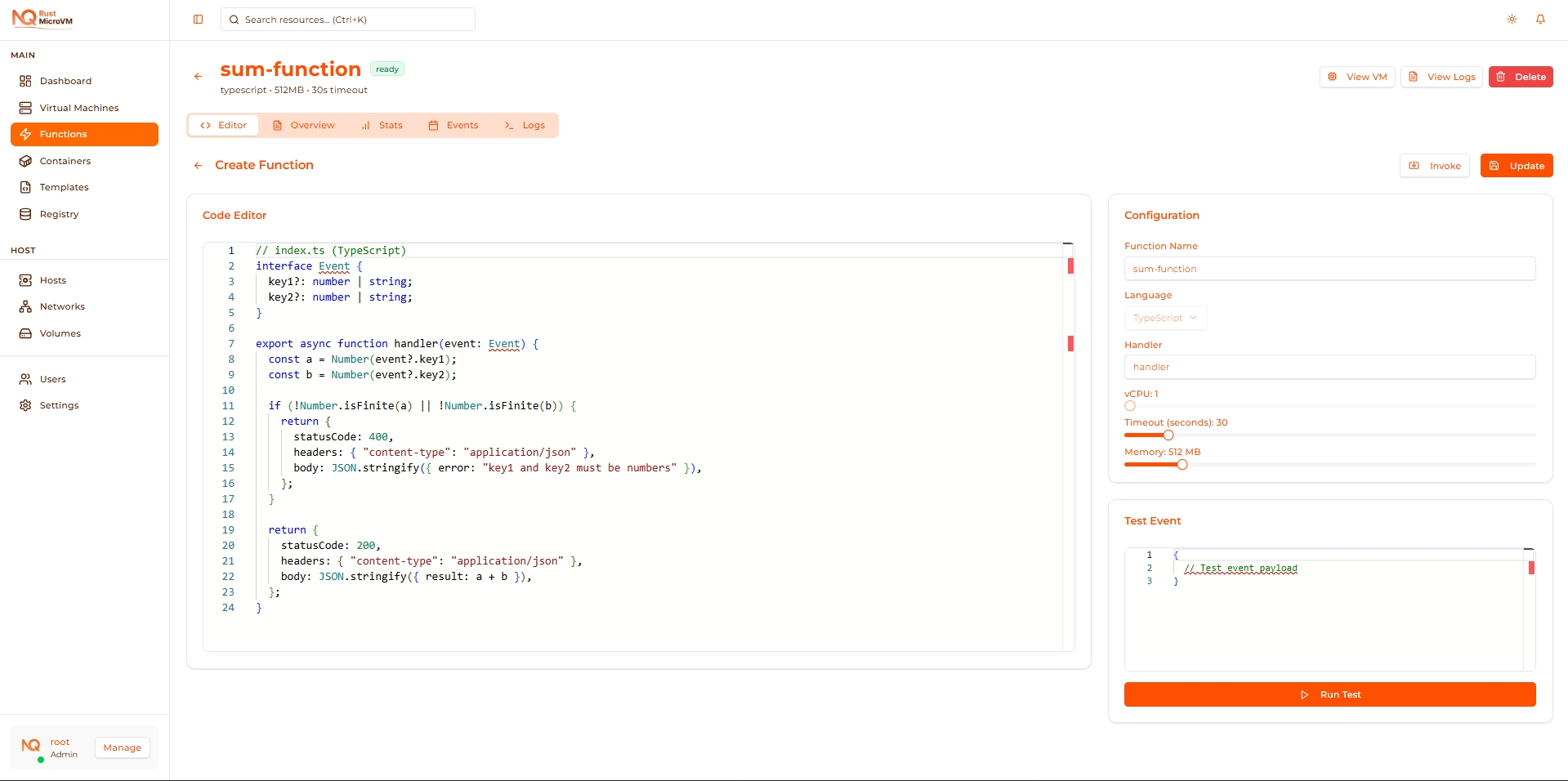
Features:
- Read-only code viewer
- Syntax highlighting
- Copy code to clipboard
To edit: Click Edit button or switch to edit mode.
Refresh Function List
To update the function list with latest data:
Click the Refresh button in the Functions page header:

When to refresh:
- After creating a function (to see new state)
- If states seem stale
- To update invocation counts
- After another user makes changes
Note: The list auto-refreshes periodically, but you can manual refresh for instant updates.
Monitoring Functions
Invocation Metrics
Track how often your functions are called:

Metrics shown:
- Last Invoked - When function was last called
- 24h Invocations - Calls in last 24 hours
- 7d Invocations - Calls in last 7 days (if shown)
- 30d Invocations - Calls in last 30 days (if shown)
Use cases:
- Identify popular functions
- Detect unused functions (for cleanup)
- Monitor traffic patterns
- Track adoption
Function Health
Monitor function state and errors:
Healthy function:
- ✅ State: Ready (green)
- ✅ Invocations succeeding
- ✅ No errors in logs
Unhealthy function:
- ❌ State: Error (red)
- ❌ Invocations failing
- ❌ Errors in logs
Actions for unhealthy functions:
- Click Logs to view error messages
- Identify the issue (syntax error, timeout, etc.)
- Click function name to Edit
- Fix the issue
- Save to redeploy
- Invoke to test
Troubleshooting
Issue: Cannot Invoke Function
Symptoms:
- Invoke button doesn’t work
- Error message appears
- Timeout error
Solutions:
Check function state:
- State must be “Ready” to invoke
- If “Creating” or “Deploying”, wait for it to finish
- If “Error”, check logs and fix issues
Check JSON payload:
- Must be valid JSON
- Check for syntax errors
- Click “Format JSON” to verify
Check network:
- Ensure function microVM is online
- Check Guest IP is assigned
- Go to Hosts page, verify agent is online
Try again:
- Refresh the page
- Try invoking again
Issue: Function Stuck in “Deploying”
Symptoms:
- State shows “Deploying” for more than 1 minute
- Never changes to “Ready”
Solutions:
- Wait longer - Initial deploy can take up to 2 minutes
- Refresh page - State may be stale
- Check logs:
- Click Logs button
- Look for deployment errors
- Check resources:
- Go to Hosts page
- Verify sufficient CPU/memory available
- Delete and recreate:
- If stuck for >5 minutes, delete function
- Create a new one with same code
Issue: Invocation Returns Error
Symptoms:
- Invoke succeeds but returns error in response
statusCode: 500or other error codes
Solutions:
Check response body:
  {
  "statusCode": 500,
  "body": "{\"error\": \"...\"}"
}
View function logs:
- Click Logs button
- Look for error messages
- Identify the issue (e.g., undefined variable)
Common issues:
- Missing event fields: Check payload has required keys
- Type errors: Ensure data types match expectations
- Timeout: Increase timeout or optimize code
- Syntax errors: Review code for typos
Fix and test:
- Edit function
- Fix the issue
- Save and invoke again
Issue: Cannot Delete Function
Symptoms:
- Delete button doesn’t respond
- Error message appears
Solutions:
Check ownership:
- You can only delete functions you created
- Or if you’re an admin
Try from detail page:
- Click function name
- Try deleting from detail page
Refresh and retry:
- Refresh the page
- Try delete again
Contact administrator:
- If issue persists
Best Practices
Function Management
✅ Organize functions logically:
- Use descriptive names
- Group related functions with prefixes
auth-login,auth-logout,auth-verifypayment-create,payment-verify,payment-refund
- Add comments in code explaining purpose
Monitoring and Maintenance
✅ Regular monitoring:
- Check invocation counts weekly
- Review error logs regularly
- Delete unused functions
- Update function code when needed
✅ Clean up unused functions:
- Filter by “Last Invoked”
- Delete functions not used in 30+ days
- Keep codebase clean
Testing Before Deploy
✅ Always test before saving:
- Use Run Test in editor
- Test with multiple payloads
- Verify error handling
- Check edge cases
✅ Test after updates:
- After saving changes, invoke from list
- Verify response is correct
- Check logs for errors
Resource Optimization
✅ Right-size functions:
- Start with minimum resources
- Monitor invocation times in logs
- Increase CPU/memory only if needed
- Over-allocation = higher costs
✅ Optimize timeout:
- Set realistic timeout values
- Too short = unnecessary failures
- Too long = wasted resources on errors
Quick Reference
Function Actions Summary
| Action | Button | Description |
|---|---|---|
| Invoke | ▶ Play | Test function with custom payload |
| Logs | 📄 FileText | View execution logs and errors |
| Delete | 🗑️ Trash | Permanently remove function |
| Edit | Click name | Open editor to modify function |
Common Workflows
Daily monitoring:
- Open Functions page
- Check states - all should be “Ready”
- Review invocation counts
- Check logs for errors
Updating a function:
- Click function name
- Edit code
- Run Test to verify
- Click Save
- Invoke from list to confirm
Debugging errors:
- Click Logs button
- Identify error in logs
- Click function name to Edit
- Fix issue
- Save and test
Next Steps
Now that you know how to manage functions:
- View Logs - Learn to debug with logs
- Playground - Experiment with new ideas
- Create a Function - Review creation steps
Performance Tips
Cold Start Optimization
Cold starts occur on first invocation or after idle period:
✅ Minimize cold starts:
- Keep functions warm with periodic invocations
- Use cron job to invoke every 5 minutes
- Minimize code size (faster load time)
- Avoid heavy dependencies
Warm Invocation Optimization
Warm invocations reuse existing microVM:
✅ Optimize warm performance:
- Cache expensive operations (DB connections, API clients)
- Initialize once in global scope
- Reuse across invocations
- Minimize per-invocation overhead
Example (Python):
  # ✅ Good - Initialize once
import requests
session = requests.Session()  # Global scope

def handler(event):
    # Reuse session across invocations
    response = session.get(event["url"])
    return {"statusCode": 200, "body": response.text}

# ❌ Bad - Initialize every time
def handler(event):
    import requests
    session = requests.Session()  # Created every invocation!
    response = session.get(event["url"])
    return {"statusCode": 200, "body": response.text}