

Manage Networks
Create and manage virtual networks for your VMs.
Creating a Network
Click + Create Network on the Networks page. The platform provisions the bridge, DHCP, and firewall rules on the host automatically.
Common fields
Network Name (required) — A descriptive name, e.g. Dev Network, Production.
Description (optional) — Free-text note about the network’s purpose.
Network Type (required) — Select one of the four types (see below).
Host (required) — The agent host that will provision and manage this network.
NAT
Private subnet with internet access via host NAT. VMs receive DHCP addresses and reach the internet through the host.
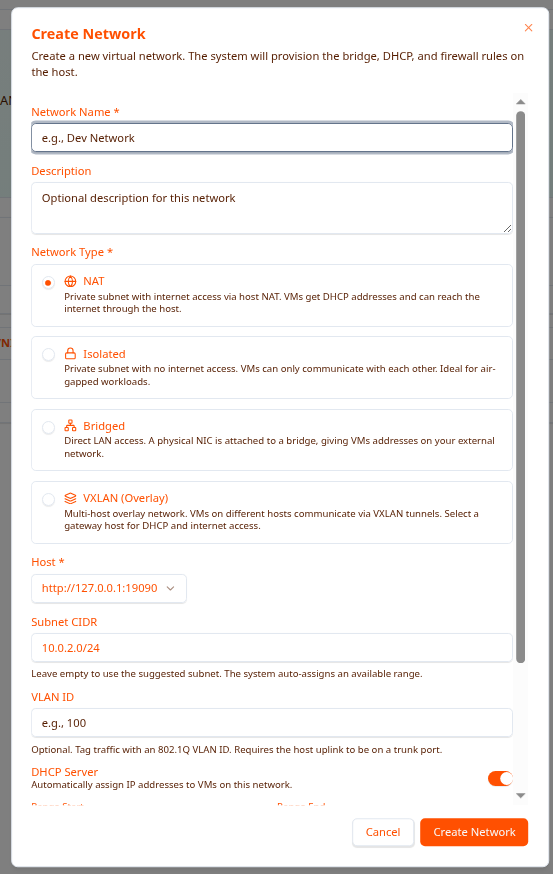
Additional fields:
| Field | Description |
|---|---|
| Subnet CIDR | e.g. 10.0.2.0/24. Leave empty to use the auto-suggested range. |
| VLAN ID | Optional 802.1Q VLAN tag (requires trunk port on the uplink). |
| DHCP Server | Toggle on/off. When on, set Range Start and Range End. |
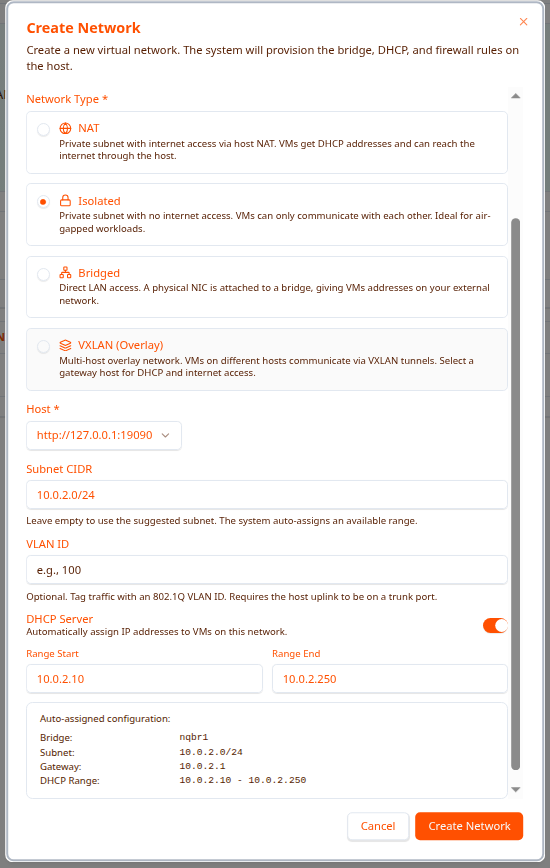
When DHCP is enabled the platform shows the auto-assigned configuration (bridge name, subnet, gateway, DHCP range) before you confirm.
Isolated
Private subnet with no internet access. VMs can only communicate with each other. Ideal for air-gapped workloads.
Same fields as NAT (Subnet CIDR, VLAN ID, DHCP Server).
Bridged
Direct LAN access. A physical NIC is attached to a bridge giving VMs real addresses on your external network.
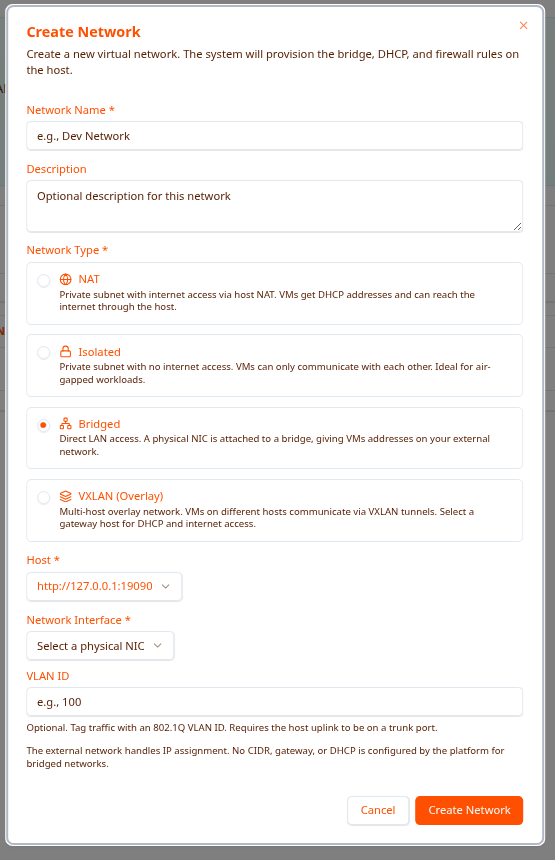
Additional fields:
| Field | Description |
|---|---|
| Network Interface | Select a physical NIC from the dropdown. |
| VLAN ID | Optional 802.1Q VLAN tag. |
The external network handles IP assignment. No CIDR, gateway, or DHCP is configured by the platform for bridged networks.
VXLAN (Overlay)
Multi-host overlay network. VMs on different hosts communicate via VXLAN tunnels. VNI is auto-assigned.
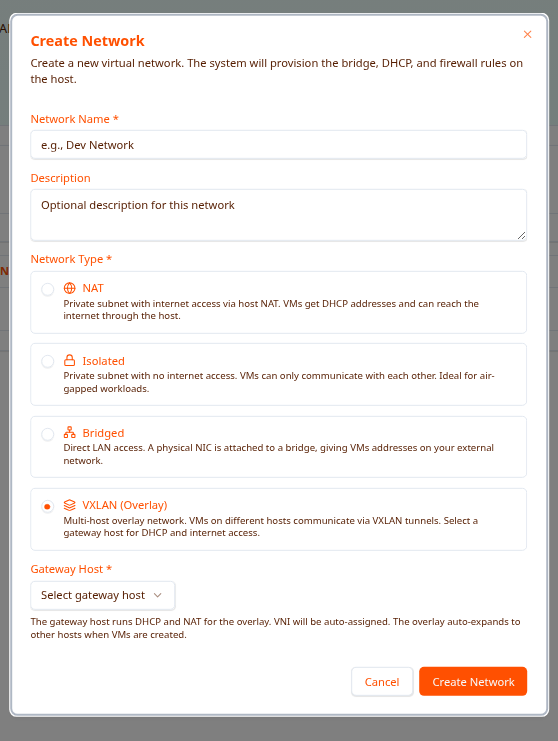
Additional fields:
| Field | Description |
|---|---|
| Gateway Host | The host that runs DHCP and NAT for the overlay. |
The overlay auto-expands to other hosts when VMs are created on them.
Deleting a Network
Click the trash icon in the Actions column. Networks with attached VMs cannot be deleted — stop or move those VMs first.
Deleting a network removes the registry entry and tears down the platform-provisioned bridge and DHCP configuration on the host.
Troubleshooting
Cannot delete network
The VMs column shows a count > 0. Stop or delete those VMs (or reconfigure them to use a different network), then retry deletion.
Network creation fails
- Verify a Host is selected
- For Bridged networks, ensure a physical NIC is available in the dropdown
- For NAT/Isolated, check the Subnet CIDR doesn’t overlap with an existing network
- Check the host agent is online on the Hosts page
VMs not getting IP addresses
- Confirm DHCP Server is enabled on NAT/Isolated networks
- Verify the DHCP range is within the subnet CIDR
- Check the host agent is online
- For Bridged networks, confirm the upstream DHCP server is reachable
Next Steps
- Networks Overview — Network types explained
- Create VM — Assign a network when creating a VM