

Create Template
Learn how to create VM templates that can be reused to quickly deploy new VMs with pre-configured settings.
Before You Start
Prerequisites
✅ Required:
- Access to Templates page
- Valid kernel image (in
/srv/images/or registry) - Valid rootfs image (in
/srv/images/or registry)
✅ Recommended:
- Know your desired CPU and RAM specs
- Have tested the kernel + rootfs combination
- Decided on a descriptive template name
Creating a Template
Step 1: Open Create Dialog
Navigate to the Templates page:
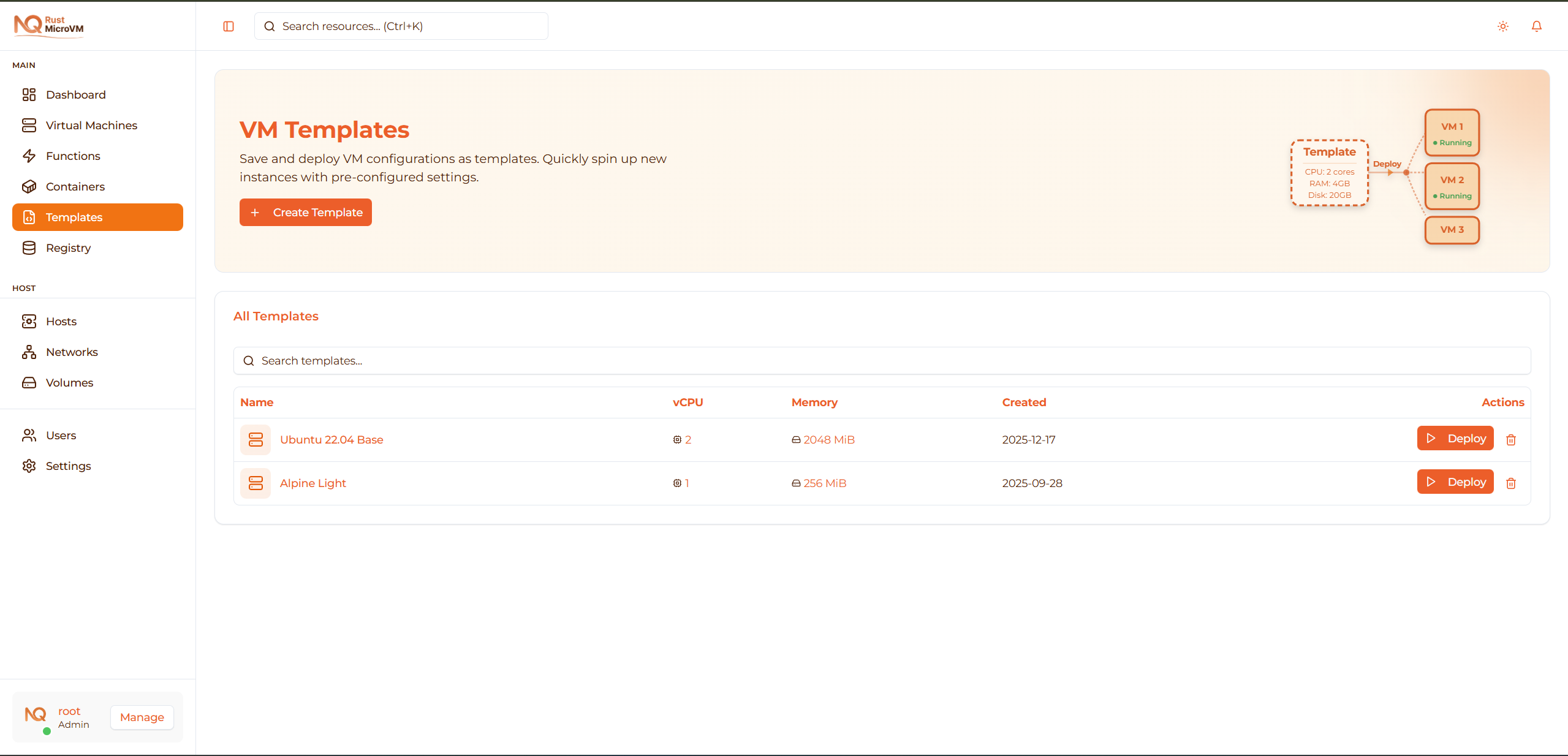
Click the “Create Template” button in the header:
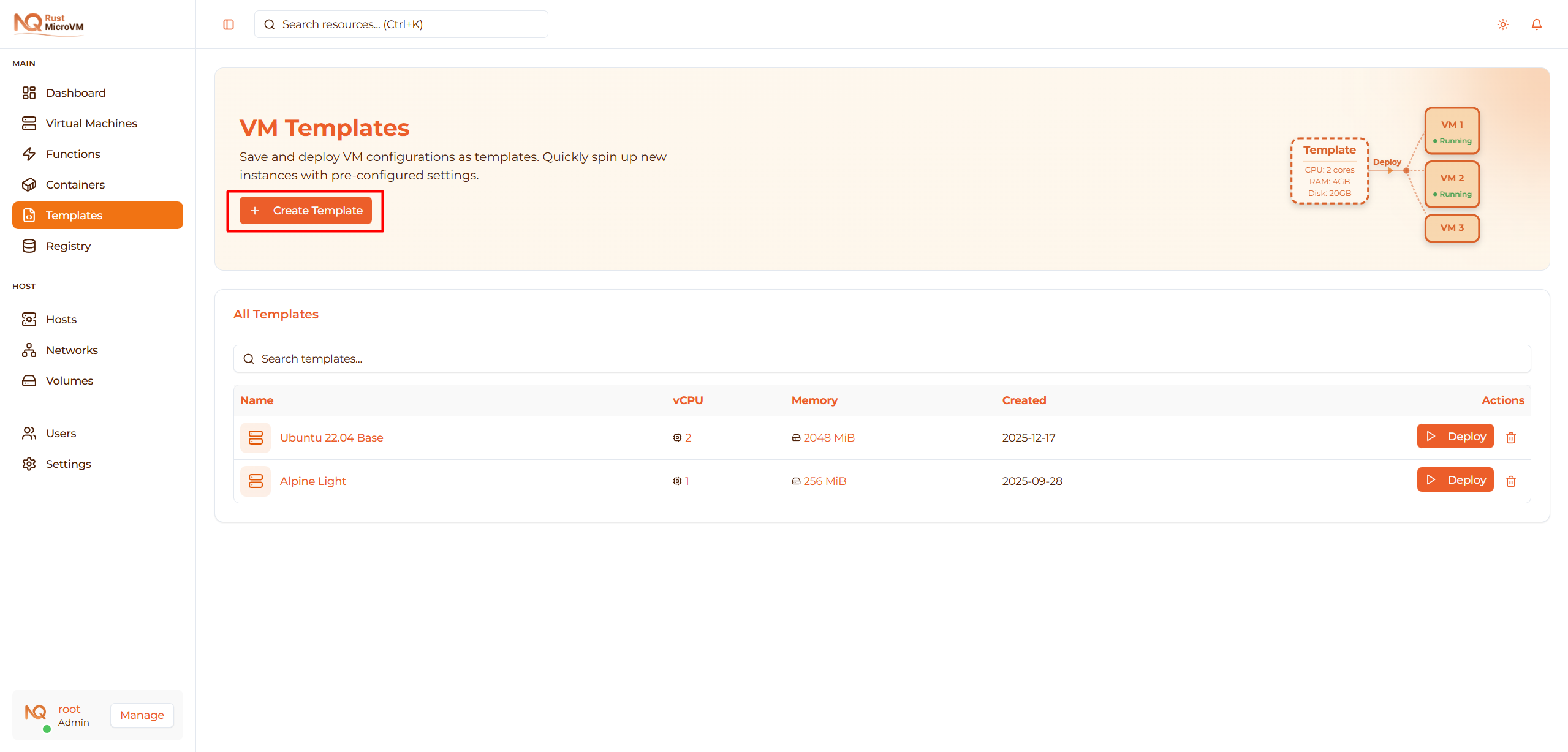
The create template dialog will open.
Step 2: Enter Template Name
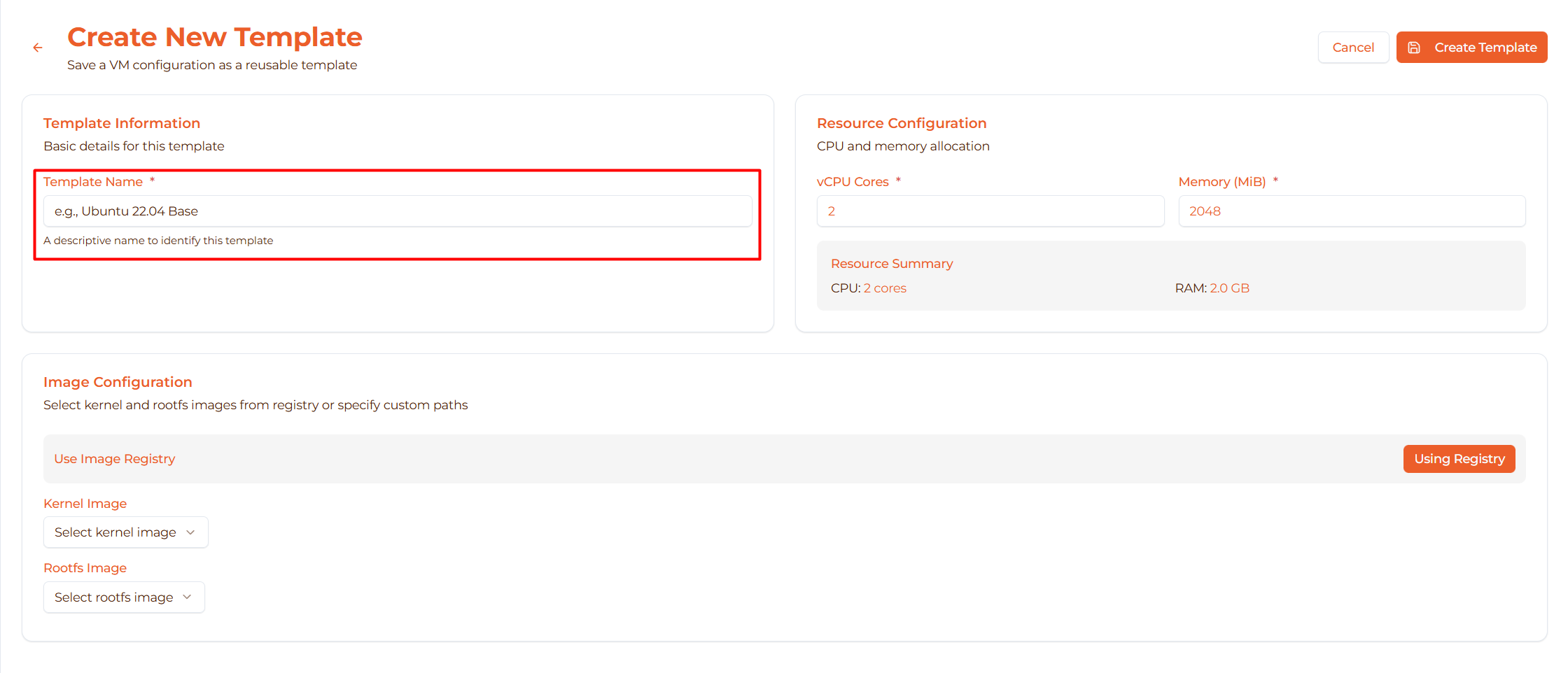
Enter a descriptive name for your template:
Good examples:
Ubuntu 22.04 BaseAlpine Dev EnvironmentProduction Web ServerTest VM - 1 vCPU
Tips:
- Include OS name for clarity
- Mention purpose or use case
- Keep it short but descriptive
- Avoid generic names like “Template 1”
Step 3: Set CPU Allocation
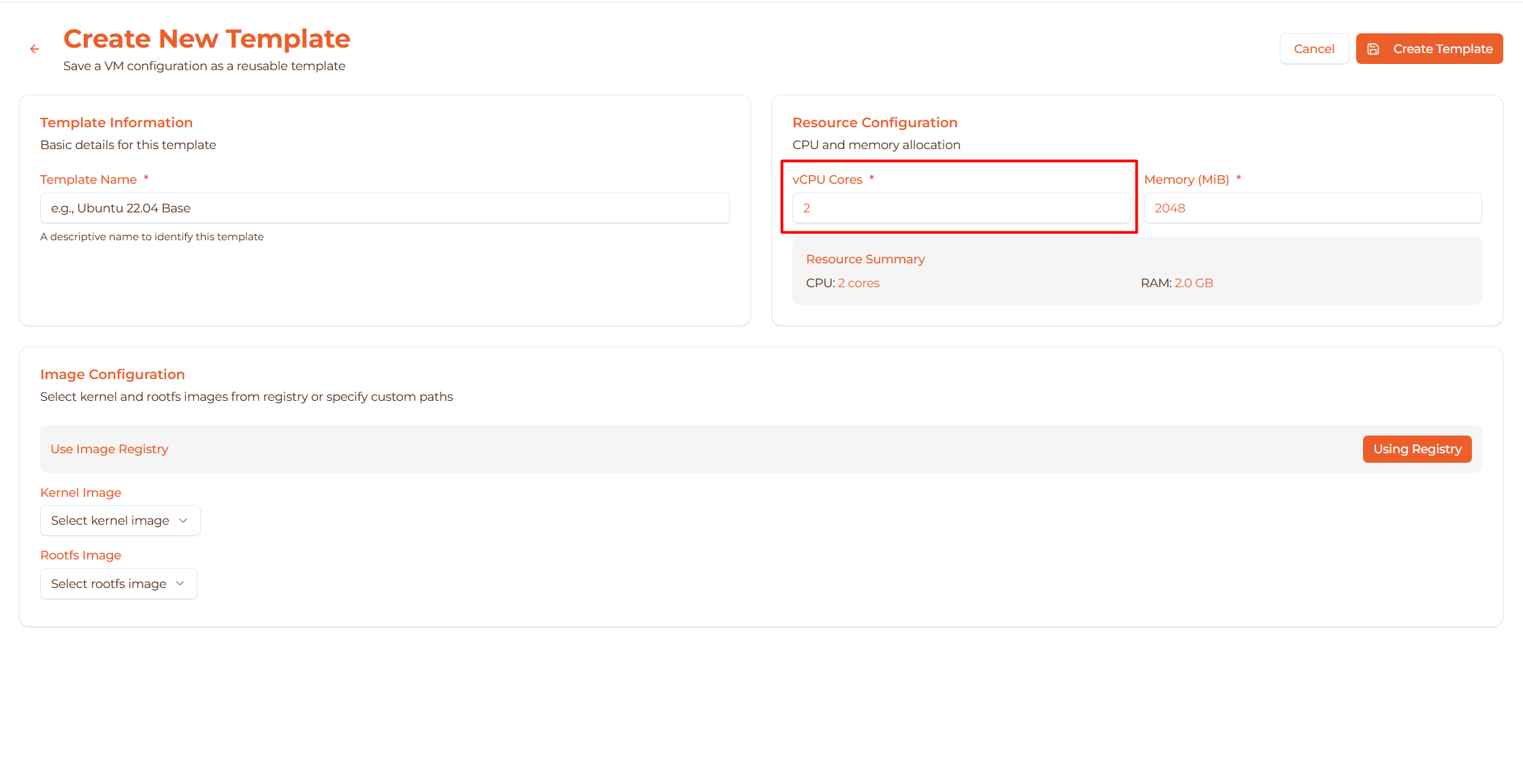
vCPU Range: 1-32 virtual CPUs
Recommended values:
- 1 vCPU - Lightweight tasks, testing
- 2 vCPU - Development, small workloads
- 4 vCPU - Production apps, databases
- 8+ vCPU - Heavy workloads, data processing
Example configurations:
  Development:    2 vCPU
Staging:        2 vCPU
Production:     4 vCPU
High-Performance: 8 vCPU
Note: VMs deployed from this template will use this CPU allocation.
Step 4: Set Memory Allocation
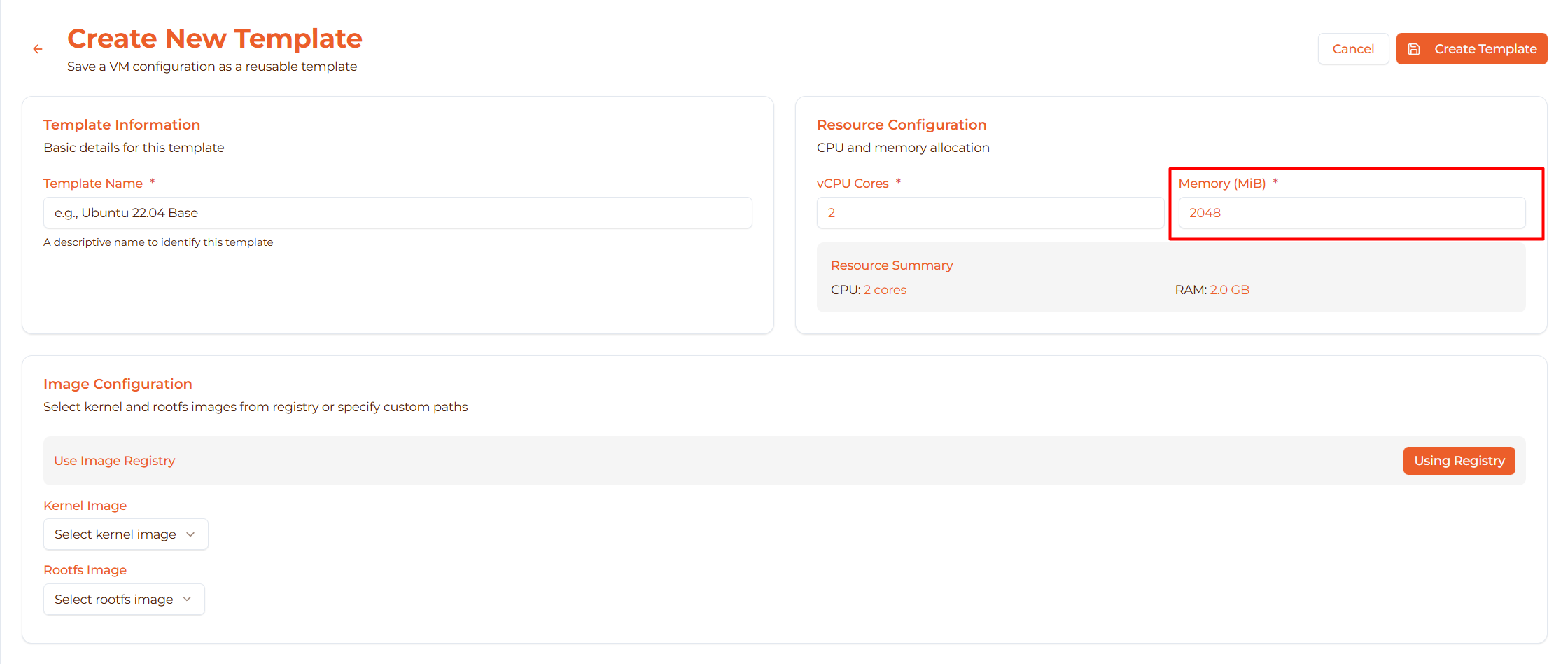
Memory Range: 128-16384 MiB (0.125 - 16 GB)
Common values:
- 512 MiB - Minimal testing VMs
- 1024 MiB (1 GB) - Light development
- 2048 MiB (2 GB) - Standard development/staging
- 4096 MiB (4 GB) - Production applications
- 8192 MiB (8 GB) - Databases, heavy workloads
Example configurations:
  Test VM:        512 MiB
Dev Environment: 2048 MiB
Web Server:     2048 MiB
Database:       8192 MiB
Warning: Ensure host has enough free RAM for all deployed VMs.
Step 5: Select Kernel Image
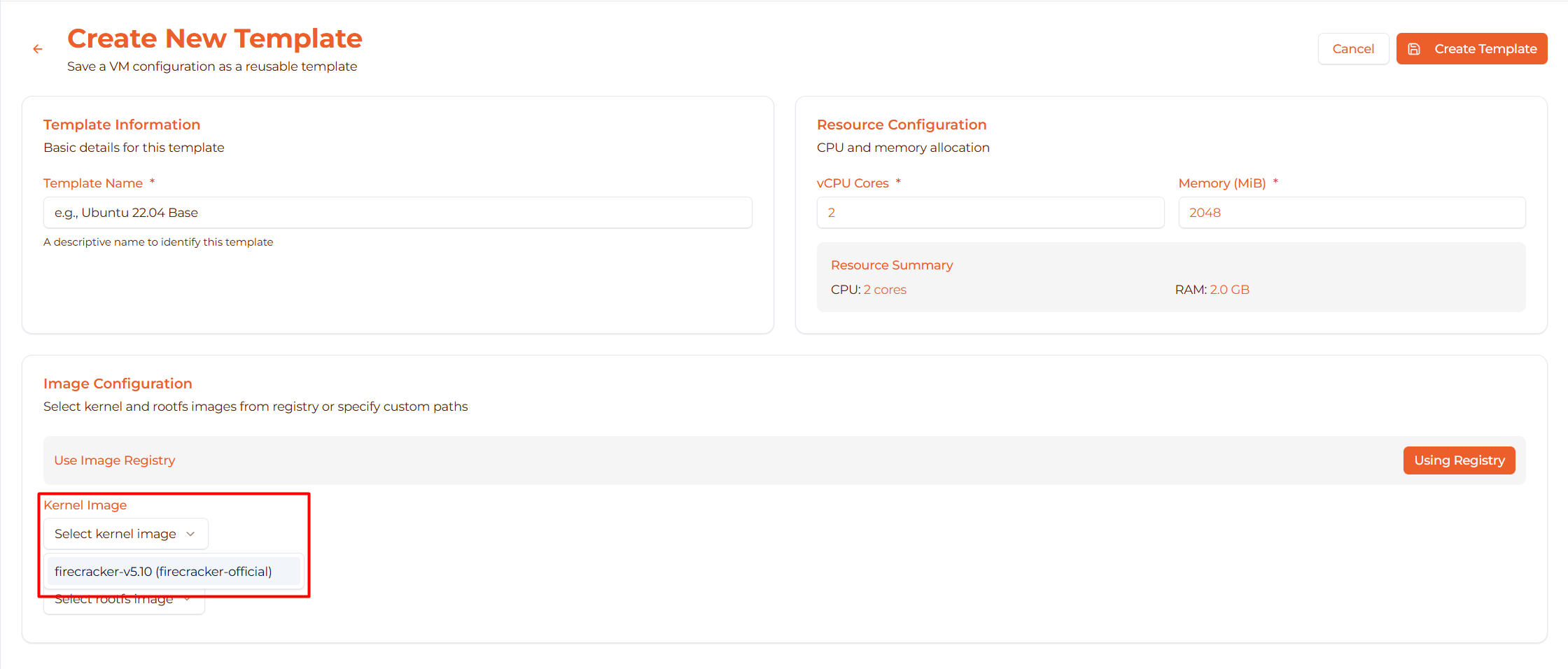
Choose how to specify the kernel:
Option 1: File Path (Recommended for local setups)
/srv/images/vmlinux-5.10.fc.bin
Option 2: Image Registry ID (Better for production)
550e8400-e29b-41d4-a716-446655440000
Common kernel paths:
/srv/images/vmlinux-5.10.fc.bin- Standard Firecracker kernel/srv/images/vmlinux-5.10.bin- Alternative version- Custom path if you built your own kernel
Where to find kernel images:
- Check
/srv/images/directory on host - Browse Image Registry page in UI
- Use pre-loaded kernels from setup scripts
Step 6: Select Rootfs Image
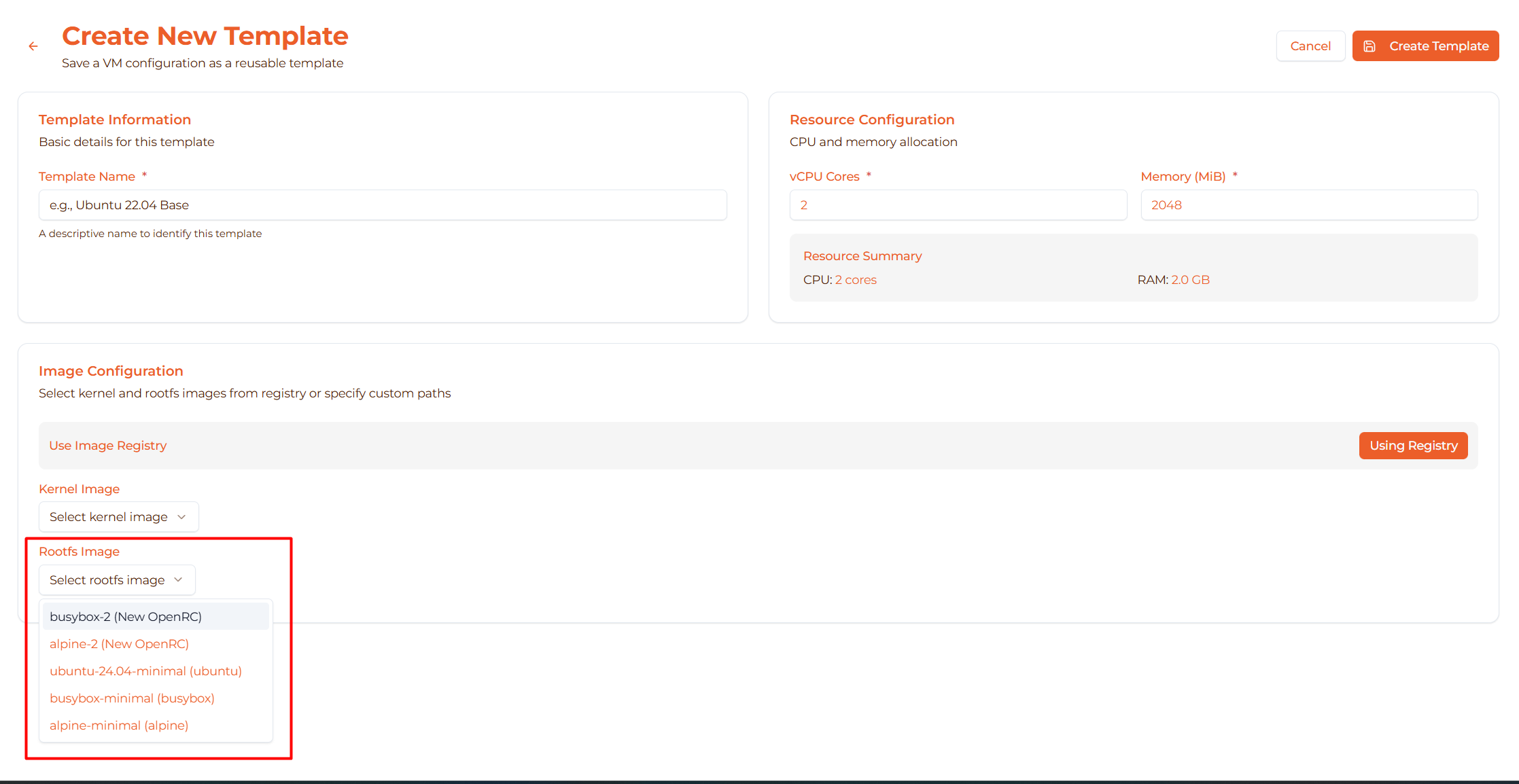
Choose the root filesystem image:
Option 1: File Path
  /srv/images/ubuntu-22.04.ext4
/srv/images/alpine-3.18.ext4
Option 2: Image Registry ID
660e9500-f39c-51e5-b827-557766551111
Common rootfs images:
Ubuntu:
/srv/images/ubuntu-22.04.ext4- Ubuntu 22.04 LTS/srv/images/ubuntu-20.04.ext4- Ubuntu 20.04 LTS
Alpine:
/srv/images/alpine-3.18.ext4- Alpine Linux 3.18/srv/images/alpine-3.19.ext4- Alpine Linux 3.19
Custom:
- Build your own with required software pre-installed
- Store in
/srv/images/directory
Important: Ensure kernel and rootfs are compatible!
Step 7: Review Configuration
Before creating, review your settings:
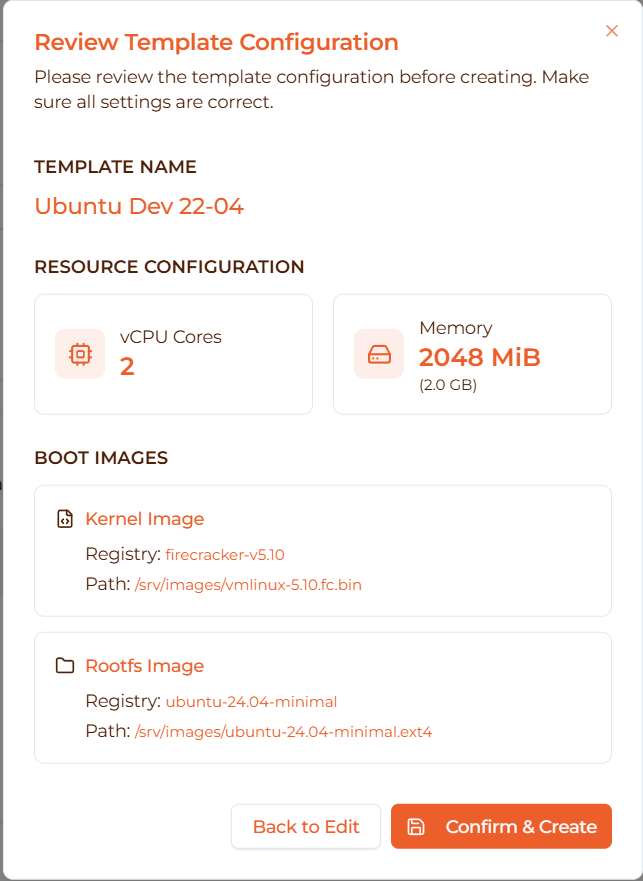
Check:
- ✅ Template name is descriptive
- ✅ vCPU count is appropriate
- ✅ Memory allocation is sufficient
- ✅ Kernel path exists and is valid
- ✅ Rootfs path exists and is valid
- ✅ Kernel and rootfs are compatible
Step 8: Create Template
Click the “Create Template” button:
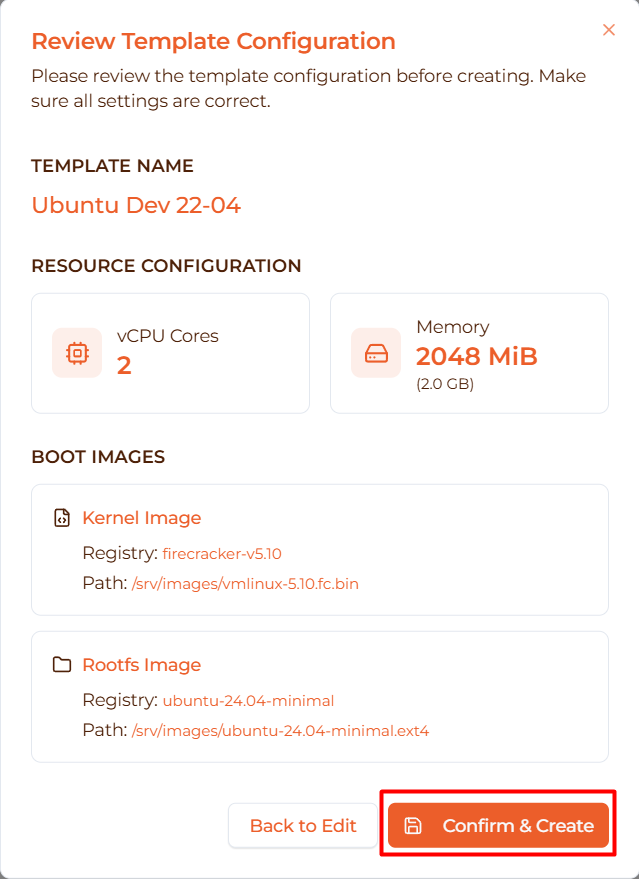
What happens:
- Form validation runs
- API call to backend (
POST /v1/templates) - Template saved to database
- Success notification appears
- Template appears in list
- Dialog closes automatically
Success:
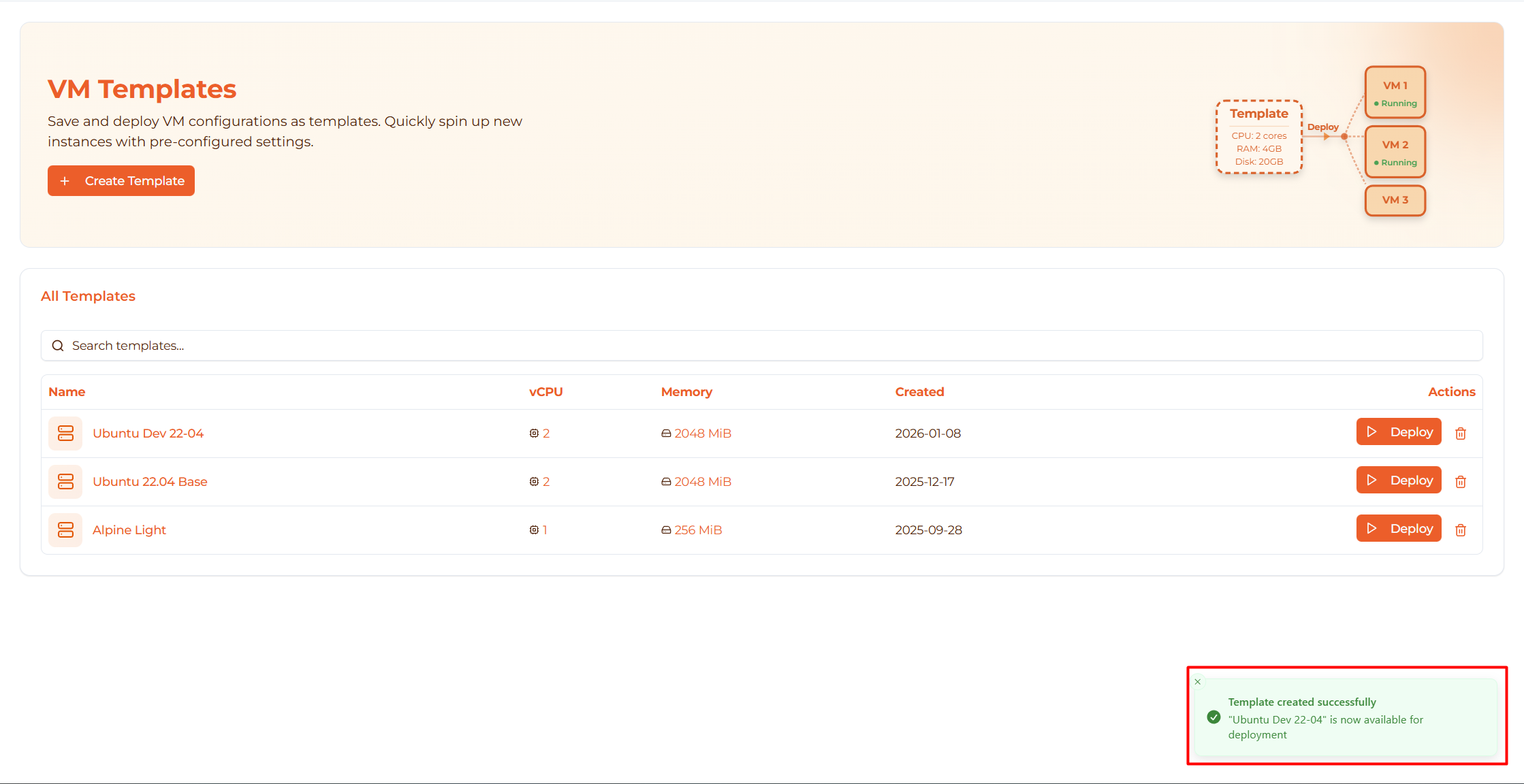
Your template is ready to use!
Example Templates
Example 1: Development Environment
Name: Ubuntu Dev Environment
Configuration:
- vCPU:
2 - Memory:
2048 MiB - Kernel:
/srv/images/vmlinux-5.10.fc.bin - Rootfs:
/srv/images/ubuntu-22.04.ext4
Use case: Standard development VMs for team members
Example 2: Lightweight Test VM
Name: Alpine Test VM
Configuration:
- vCPU:
1 - Memory:
512 MiB - Kernel:
/srv/images/vmlinux-5.10.fc.bin - Rootfs:
/srv/images/alpine-3.18.ext4
Use case: Quick testing, CI/CD pipelines
Example 3: Production Web Server
Name: Production Web - Ubuntu
Configuration:
- vCPU:
4 - Memory:
4096 MiB - Kernel:
/srv/images/vmlinux-5.10.fc.bin - Rootfs:
/srv/images/ubuntu-22.04.ext4
Use case: Production web application servers
Example 4: Database Server
Name: PostgreSQL Server
Configuration:
- vCPU:
4 - Memory:
8192 MiB - Kernel:
/srv/images/vmlinux-5.10.fc.bin - Rootfs:
/srv/images/ubuntu-22.04-postgres.ext4
Use case: Database instances with pre-installed PostgreSQL
Validation Rules
The form validates input before creating:
Template Name
- ❌ Cannot be empty
- ✅ Must be unique
- ✅ Any characters allowed
- ✅ Recommended: 3-50 characters
vCPU
- ❌ Must be integer
- ❌ Minimum: 1
- ❌ Maximum: 32
- ✅ Default: 1
Memory (MiB)
- ❌ Must be integer
- ❌ Minimum: 128 MiB
- ❌ Maximum: 16384 MiB (16 GB)
- ✅ Default: 512 MiB
Kernel
- ❌ Must provide path OR image ID
- ✅ Path format:
/srv/images/filename.bin - ✅ UUID format for image ID
Rootfs
- ❌ Must provide path OR image ID
- ✅ Path format:
/srv/images/filename.ext4 - ✅ UUID format for image ID
Common Errors
Error: “Template name cannot be empty”
Cause: No name entered
Solution: Enter a descriptive template name
Error: “vCPU must be between 1 and 32”
Cause: Invalid CPU count
Solution:
- Enter a number between 1-32
- Use integer values only (no decimals)
Error: “Memory must be between 128 and 16384 MiB”
Cause: Invalid memory allocation
Solution:
- Enter memory in MiB (not MB or GB)
- Use values 128-16384
- Example: For 2 GB, use
2048MiB
Error: “Must provide kernel path or image ID”
Cause: Both kernel fields are empty
Solution:
- Enter kernel file path:
/srv/images/vmlinux-5.10.fc.bin - OR enter kernel image ID from registry
Error: “Must provide rootfs path or image ID”
Cause: Both rootfs fields are empty
Solution:
- Enter rootfs file path:
/srv/images/ubuntu-22.04.ext4 - OR enter rootfs image ID from registry
Error: “Failed to create template”
Possible causes:
- Backend API not running
- Database connection issue
- Invalid image paths
- Network connectivity problem
Solution:
- Check manager is running:
ps aux | grep manager - Verify paths exist:
ls /srv/images/ - Check browser console for detailed error
- Retry after a few seconds
After Creating
Verify Template
After creation, verify your template appears in the list:

Check:
- Template name is correct
- vCPU and RAM shown correctly
- Creation date is today
- Deploy button is available
Deploy Your First VM
Test your template by deploying a VM:
- Click “Deploy VM” on the template card
- Enter a VM name (e.g.,
test-from-template) - Click “Deploy VM”
- Wait ~30 seconds for VM to start
- Verify VM is running
See Manage Templates for deployment details.
Edit if Needed
If you need to change the template:
- Click the template card (future feature)
- Click “Edit” button
- Modify settings
- Save changes
Note: Changes only affect future deployments, not existing VMs.
Best Practices
1. Test Before Saving
Before creating a template:
- Manually create a test VM with the same configuration
- Verify kernel + rootfs combination works
- Check VM boots and runs correctly
- Then create template with those settings
This prevents deploying broken VMs from template.
2. Use Descriptive Names
Include in name:
- Operating system (Ubuntu, Alpine, etc.)
- Purpose (Dev, Prod, Test)
- Special features (with Docker, with PostgreSQL)
- Resource tier (1 vCPU, 4 vCPU)
Example: Ubuntu 22.04 - Dev - 2vCPU is better than template1
3. Document Your Templates
Keep notes about:
- What software is pre-installed in rootfs
- Which kernel version is used
- Expected use cases
- Any special configuration needed after deployment
4. Organize by Environment
Create template sets for different environments:
Development:
- Lower resources (1-2 vCPU, 512-2048 MiB)
- Same OS as production
- Quick deployment priority
Staging:
- Match production resources
- Same images as production
- For pre-production testing
Production:
- Higher resources (4+ vCPU, 4096+ MiB)
- Stable, tested images
- Documented and versioned
5. Keep Templates Updated
Periodically review and update templates:
- Update to newer kernel versions
- Refresh rootfs images with security patches
- Adjust resource allocations based on usage
- Remove unused templates
Quick Reference
Template Creation Checklist
Before clicking “Create Template”:
- Template name is descriptive and unique
- vCPU count is set (1-32)
- Memory is set in MiB (128-16384)
- Kernel path or ID is provided
- Rootfs path or ID is provided
- Images exist and are accessible
- Resource allocation is appropriate for use case
- Configuration has been tested with manual VM
Keyboard Shortcuts
| Action | Shortcut |
|---|---|
| Open create dialog | Click “Create Template” button |
| Move between fields | Tab |
| Submit form | Enter (when button focused) |
| Cancel | Esc |
Next Steps
- Manage Templates - Deploy VMs, edit, and delete templates
- Templates Overview - Learn more about templates
- Create VM - Manual VM creation guide
- Image Registry - Manage kernel and rootfs images
Related Topics
- VM Creation - Templates vs manual VM creation
- Image Management - Using image registry with templates
- Resource Planning - Sizing CPU and memory appropriately