

Access to the VM
Learn how to access your virtual machines using the web console or SSH.
Web Console Access
The web console provides browser-based terminal access directly in the UI — no additional software needed.
Opening the Console
- Go to Virtual Machines and click your VM name
- Click the Terminal tab
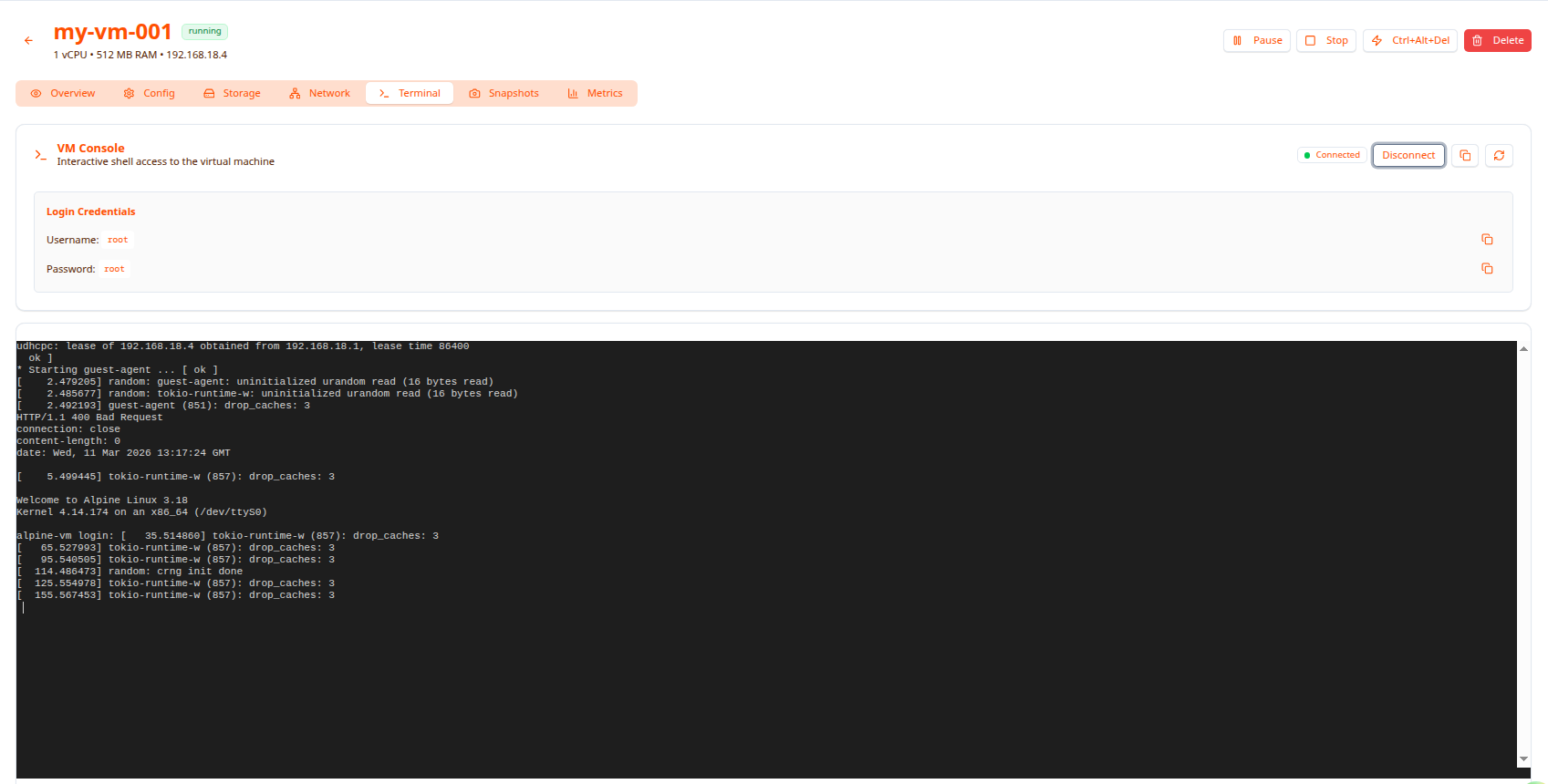
Login Credentials
The Login Credentials card above the terminal displays the username and password set during VM creation. You can copy each value with the copy button on the right.
- Username: shown in orange (e.g.
root) - Password: shown in orange (e.g.
root)
Type these at the login: prompt in the terminal to log in.
Connection Status
The top-right of the console panel shows a green Connected indicator and a Disconnect button. Use Disconnect to cleanly close the WebSocket session without navigating away.
Console Tips
Paste into console: Ctrl+Shift+V (not Ctrl+V)
Copy from console: Select text with the mouse, then Ctrl+Shift+C
Clear screen: clear or Ctrl+L
Logout: exit or Ctrl+D
SSH Access
SSH gives better performance and lets you use local tools like your editor, SCP, and port forwarding. The VM’s IP address is shown in the header of the detail page (e.g. 192.168.18.4).
Prerequisites
- VM is Running
- VM has an IP address visible in the detail header
- Your machine can reach the VM network
Connect
ssh root@192.168.18.4
On first connection, confirm the host key fingerprint when prompted.
Custom Port
ssh -p 2222 root@192.168.18.4
SSH Config Shortcut
  # ~/.ssh/config
Host my-vm
    HostName 192.168.18.4
    User root
    IdentityFile ~/.ssh/id_ed25519
Then just run ssh my-vm.
File Transfer
SCP
  # Upload
scp /local/file.txt root@192.168.18.4:/root/

# Download
scp root@192.168.18.4:/root/file.txt /local/

# Upload directory
scp -r /local/dir root@192.168.18.4:/root/
SFTP
sftp root@192.168.18.4
Common SFTP commands: put, get, ls, cd, lcd, exit.
Troubleshooting
Console won’t connect or shows blank screen
- Verify VM state is Running
- Refresh the browser
- Try a different browser (Chrome, Firefox, Edge)
- Check that WebSocket connections are not blocked by a firewall or proxy
Can’t paste with Ctrl+V
Use Ctrl+Shift+V instead, or right-click → Paste.
Console is slow/laggy
Switch to SSH for interactive work — the web console is best for quick access and boot-time output.
SSH: Connection refused
- Verify the VM is running and has an IP
- Check SSH is running inside the VM via console:
  # Alpine
rc-service sshd status

# Ubuntu/Debian
systemctl status sshd
SSH: Permission denied (publickey)
- Confirm the SSH key was added during VM creation
- Run
ssh -v root@<ip>to see which key is being tried - Fall back to password auth:
ssh -o PreferredAuthentications=password root@<ip>
Next Steps
- Manage VM — Start, stop, pause operations
- Monitoring — View real-time metrics
- Backup & Snapshot — Protect your VM data