

Troubleshooting
A reference for diagnosing and resolving common issues across VM creation, management, access, and snapshots.
VM Creation
Kernel or Rootfs Dropdown is Empty
Problem: No options appear in the kernel or rootfs selection dropdowns during VM creation.
Solution:
- Go to Image Registry in the sidebar
- Upload the required kernel and rootfs images (see Upload Images)
- Return to VM creation — dropdowns will now be populated
Not Enough Resources
Problem: Error message “Insufficient resources available” when creating a VM.
Solution:
- Reduce the vCPU or memory allocation
- Stop unused VMs to free host resources
- Go to Hosts page to check available capacity
- Contact your administrator to provision additional capacity
VM Stuck in “Creating” State
Problem: VM shows “Creating” for more than 30 seconds.
Solution:
- Refresh the browser page
- Go to Hosts and verify the agent is Online (green indicator)
- If still stuck, delete the VM and recreate it
- Contact your administrator if the problem persists
VM Management
Can’t Start VM
Symptoms: Start button doesn’t respond, VM is stuck in a transitioning state, or an error notification appears.
Solutions:
- Check host resources — go to Hosts and verify the host has available CPU and memory; stop other VMs if the host is overloaded
- Verify images exist — go to Registry → Images and confirm the kernel and rootfs are present; re-upload if missing
- Check agent status — on the Hosts page, confirm the agent is Online; if offline, contact your administrator
- Recreate the VM — delete the problematic VM and create a new one with the same settings
Delete Button is Disabled
Symptoms: Delete button is greyed out; tooltip reads “Cannot delete running VM”.
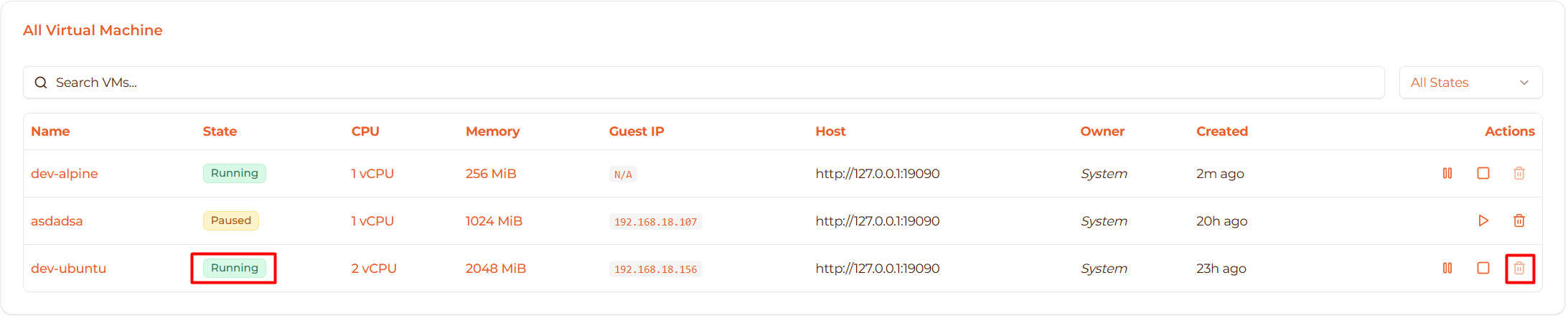
Solution: This is expected behavior — running VMs cannot be deleted.
- Click Stop and wait for the state to change to “Stopped”
- The Delete button will now be enabled
This restriction prevents accidental deletion of active services and protects data integrity.
VM Won’t Stop
Symptoms: Clicked Stop but the VM still shows “Running” after 30 seconds.
Solutions:
- Refresh the page (Ctrl+R / F5) and check if the state has updated
- Wait 60 seconds and click Stop again
- Gracefully shut down from inside the VM first:Then click Stop after ~10 seconds
shutdown now - Open the VM detail page and check for displayed errors
Paused VM Can’t Resume
Symptoms: Resume button has no effect, or an error message appears.
Solutions:
- Refresh the browser and try Resume again
- Stop the paused VM, wait for “Stopped” state, then Start it
- Open browser DevTools (F12 → Console) and look for error messages to share with your administrator
- If a snapshot exists, delete the VM and restore from snapshot
Console & SSH Access
Can’t Connect to Console
Problem: Console shows “Connection failed” or a blank screen.
Solutions:
- Verify the VM is in Running state
- Refresh the browser page
- Check the browser console (F12) for JavaScript errors
- Try a different browser (Chrome, Firefox, Edge)
- Confirm WebSocket connections are not blocked by a firewall or proxy
- Disable browser extensions temporarily
SSH Connection Refused
Problem: ssh: connect to host <ip> port 22: Connection refused
Solutions:
- Verify the VM is running and has an IP address
- Ping the IP:
ping <vm-ip> - Check that the SSH service is running inside the VM (via the console):
# Alpine rc-service sshd status # Ubuntu/Debian systemctl status sshd - Check firewall rules inside the VM
SSH Permission Denied
Problem: Permission denied (publickey)
Solutions:
- Confirm the SSH key was configured during VM creation
- Check you are using the correct key:
ssh -v root@<vm-ip> - Try password authentication (if enabled):
ssh -o PreferredAuthentications=password root@<vm-ip> - Recreate the VM with the correct SSH key
Console is Slow or Laggy
Problem: Noticeable input delay in the web console.
Solutions:
- Use SSH instead of the web console for better performance
- Check your network latency to the server
- Close other browser tabs to free resources
- Try the console in private/incognito mode
Can’t Paste in Console
Problem: Ctrl+V does not work in the web console.
Solution: Use Ctrl+Shift+V, or right-click and select Paste. Some browsers also support middle-click to paste.
Snapshots
Snapshot Creation Fails
Problem: An error appears when attempting to create a snapshot.
Solutions:
- Check available disk space on the host
- Ensure the VM is in a stable state (not mid-boot or transitioning)
- Try stopping the VM before taking the snapshot
- Contact your administrator if disk space is exhausted
Restore Takes Too Long
Problem: Restoration appears stuck or is very slow.
Solutions:
- Wait — large VMs can take several minutes to restore
- Check your network connection to the server
- Refresh the browser after 5 minutes and check VM status
- Contact your administrator if the operation exceeds 10 minutes
Can’t Delete Snapshot
Problem: Delete button is greyed out.
Solutions:
- Check if the snapshot is currently in use
- Stop any VMs dependent on the snapshot
- Wait for other operations to complete, then refresh the page
- Verify you have the required permissions
Snapshot Missing
Problem: An expected snapshot is not visible in the list.
Solutions:
- Refresh the browser page
- Confirm you are viewing the correct VM
- Check the All Snapshots page
- Verify the snapshot was not auto-deleted or removed by a team member
Getting Help
If none of the solutions above resolve your issue:
- Check the Hosts page to confirm all agents are online
- Review browser DevTools (F12) for errors
- Contact your platform administrator with the VM name, error message, and browser console output