

Browse Volumes
Learn how to browse and search through available volumes in the registry to find exactly what you need for your VMs.
Accessing the Volume Browser
From Volumes Page
Navigate to the Volumes page:
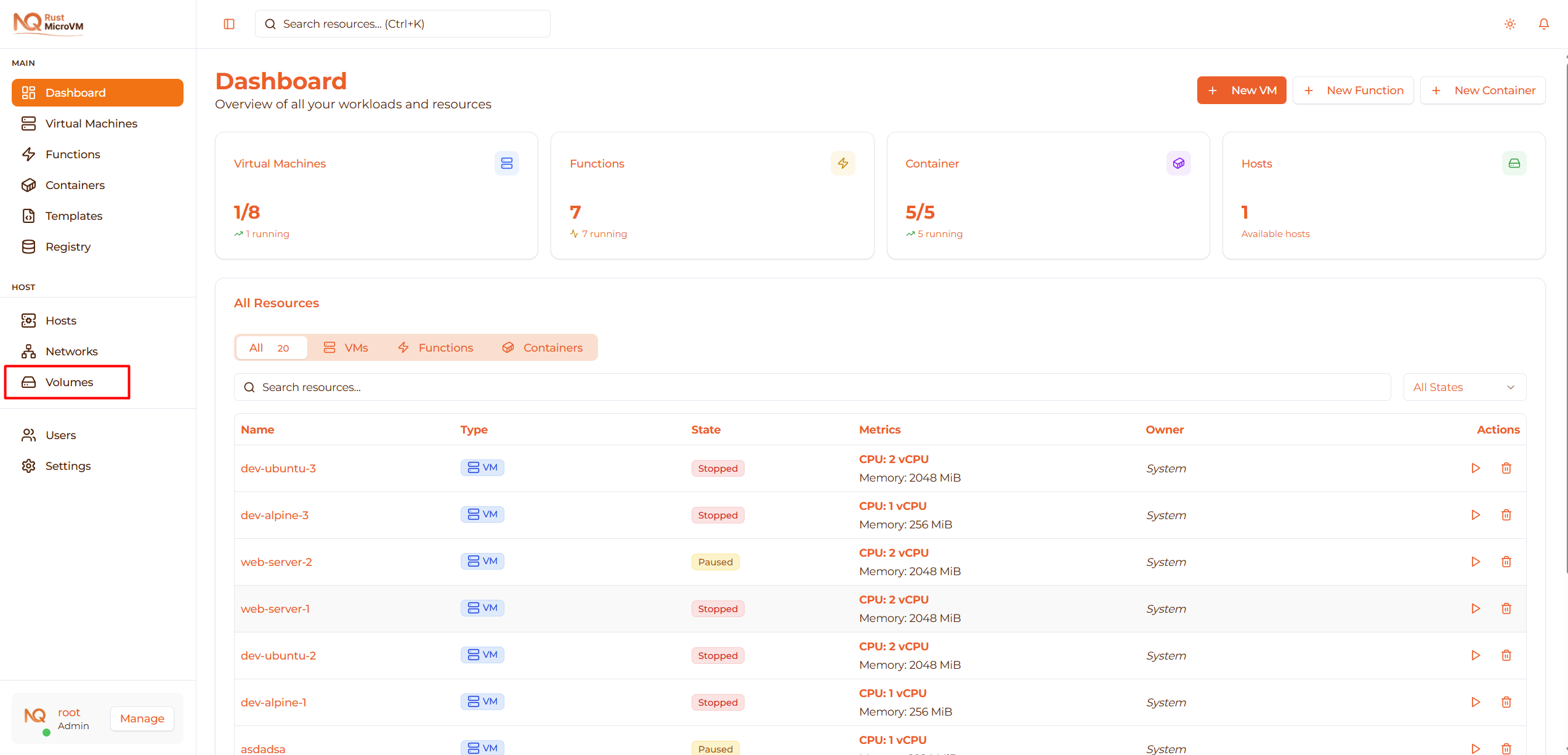
- Click “Volumes” in the sidebar (under Networks)
- View all available volumes in the table
Volume Table Layout
The volume table displays key information:
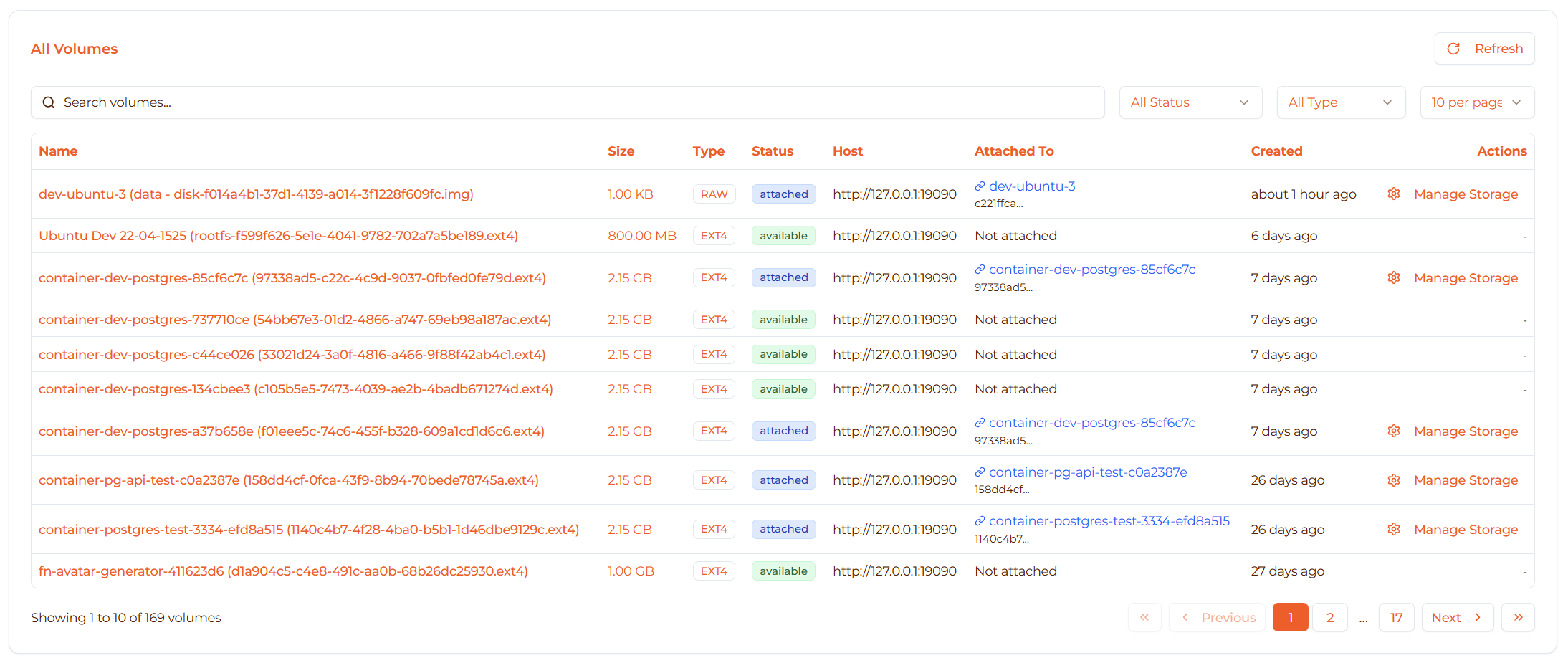
Columns:
- Name - Volume display name
- Type - Data, Rootfs, or Scratch
- Size - File size in MB/GB
- Format - ext4, qcow2, or raw
- Attached VMs - Number of VMs using this volume
- Created - When volume was added
- Actions - Available operations
Searching Volumes
Basic Search
Use the search bar to find volumes:
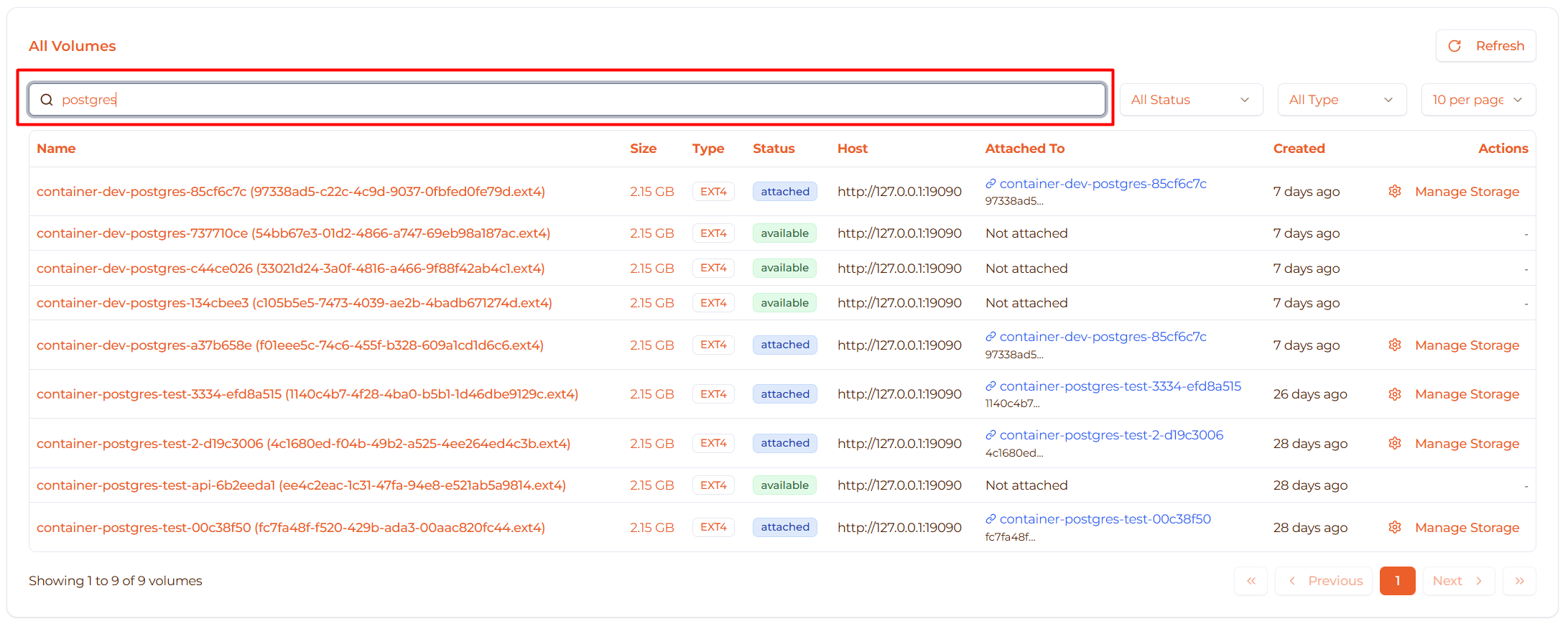
Search by:
- Volume name
- VM name (finds volumes attached to that VM)
- Format type
- Keywords
Examples:
  Search: "postgres"
→ Finds: postgres-data-prod, postgres-backup

Search: "web-server"
→ Finds: Volumes attached to web-server VM

Search: "ext4"
→ Finds: All ext4 volumes

Search: "data"
→ Finds: postgres-data, webapp-data, logs-data
Search Tips
Be specific:
  ❌ Too vague: "volume"
✅ Better: "postgres data"
✅ Best: "postgres-data-prod"
Search by VM name:
  "web-server" → shows volumes attached to web-server
"database-01" → shows volumes for database-01 VM
Search by purpose:
  "backup" → finds backup volumes
"logs" → finds log storage volumes
"temp" → finds temporary volumes
Filtering Volumes
Filter by Type
Use the type filter dropdown:
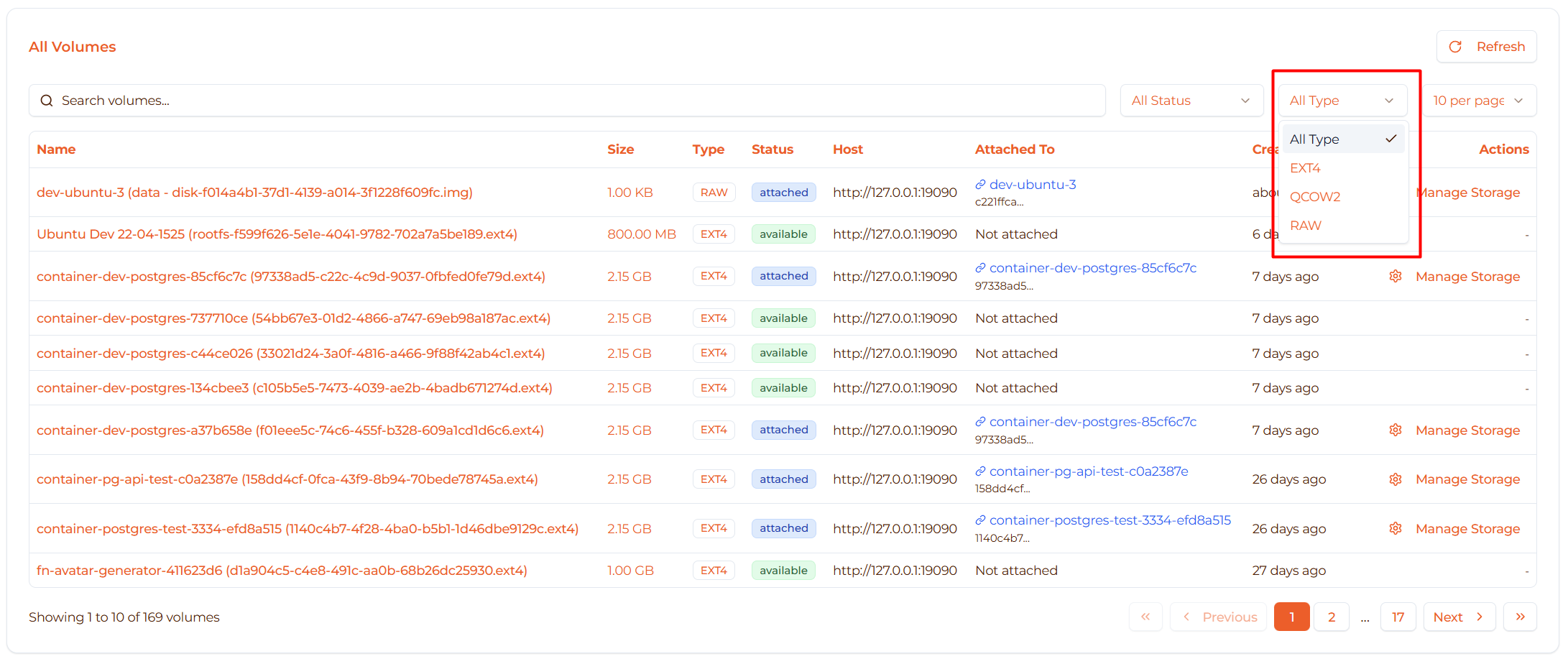
Filter options:
- All - Show all types
- ext4 - Only ext4 volumes
- qcow2 - Only qcow2 volumes
- raw - Only raw volumes
Filter by Status
Filter volumes by attachment status:
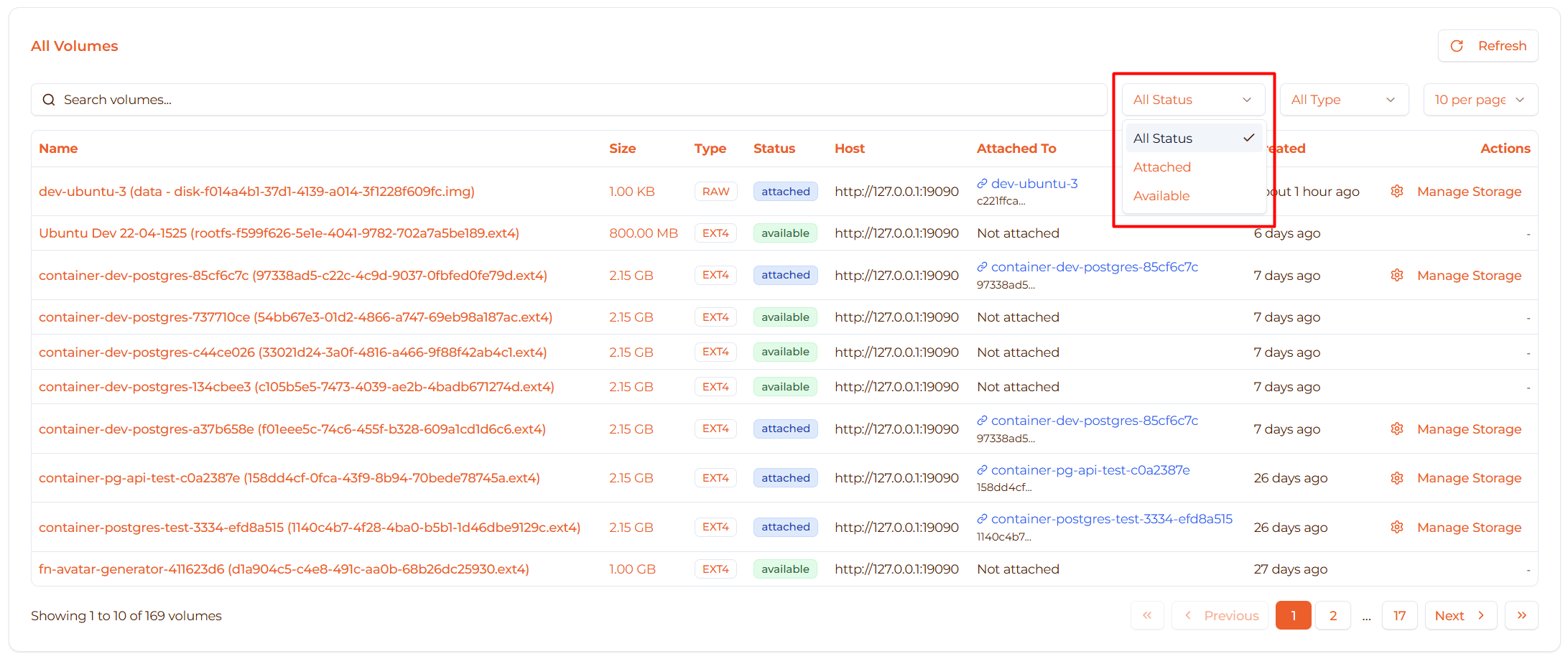
Filter options:
- All - Show all volumes
- Attached - Only volumes attached to VMs
- Available - Only unattached volumes
Use cases:
- Find “Available” volumes for reuse
- Check “Attached” to see what’s in use
- Identify unused volumes for cleanup
Combined Filtering
Combine search and filters:
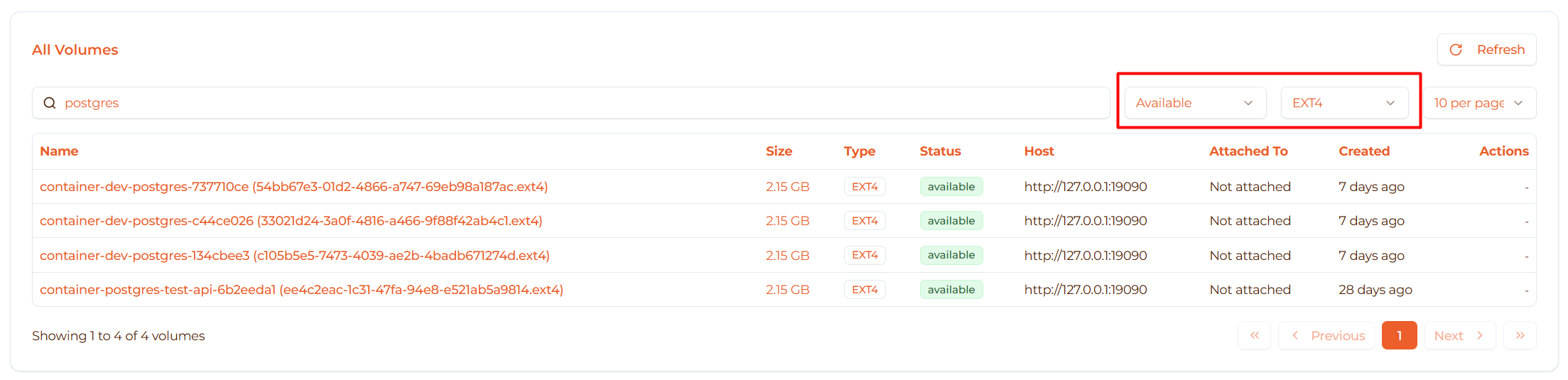
Example 1: Find available data volumes
  1. Set type filter to "EXT4"
2. Set status filter to "Available"
Result: Only unattached data volumes
Example 2: Find postgres volumes
  1. Set type filter to "EXT4"
2. Search for "postgres"
Result: Only data volumes with "postgres" in name
Viewing Volume Details
Volume Information
Each volume row shows key details:
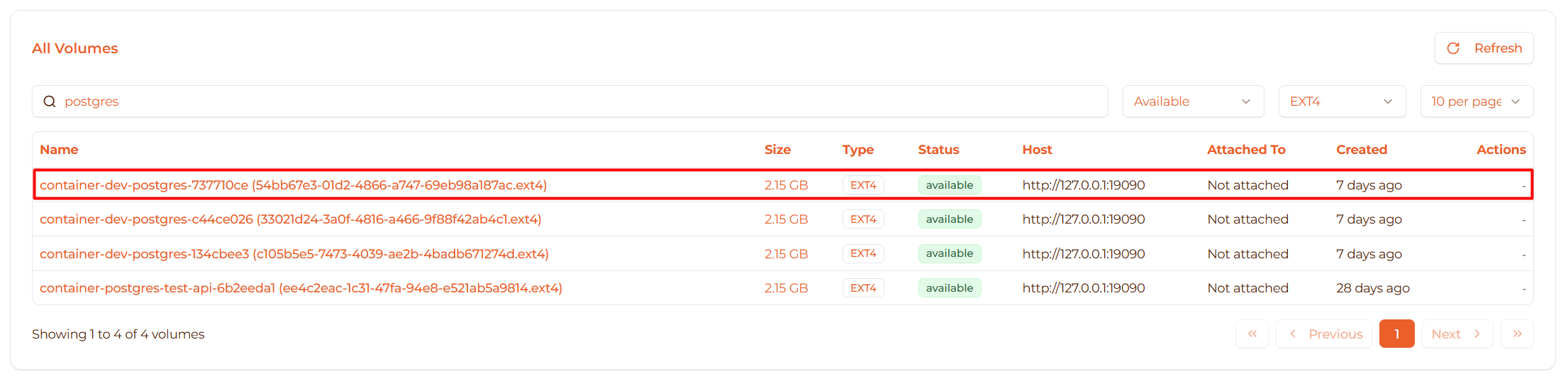
Displayed information:
- Name: Display name of the volume
- Type badge: Color-coded type indicator
- Blue for Data
- Green for Rootfs
- Purple for Scratch
- Size: Human-readable file size
- Format badge: ext4, qcow2, or raw
- VM count: Number of VMs using this volume
- Date: When volume was created
Volume Size Display
Sizes are formatted for readability:
  < 1 GB:     "512 MB"
< 10 GB:    "2.5 GB"
< 100 GB:   "45 GB"
>= 100 GB:  "250 GB"
Typical sizes:
- Rootfs: 2-20 GB
- Data volumes: 10-500 GB
- Scratch: 5-100 GB
- Database volumes: 50-1000 GB
Volume Categories
Application Data Volumes
Volumes for application storage:
  Database:
- postgres-data-prod
- mysql-data-staging
- redis-cache

Web Applications:
- webapp-uploads
- static-assets
- user-content

Logs:
- app-logs-2025
- nginx-logs
- system-logs
System Volumes
Rootfs and system storage:
  Operating Systems:
- ubuntu-22.04-base
- alpine-3.18-minimal
- debian-12-server

Specialized:
- container-runtime
- development-env
- production-base
Temporary Volumes
Scratch and temporary storage:
  Computation:
- temp-processing
- scratch-space
- build-cache

Testing:
- test-data-temp
- dev-workspace
- experiment-storage
Sorting Volumes
Volumes can be sorted by clicking column headers:
Sort by Name (alphabetical):
  app-logs
database-backup
postgres-data
webapp-uploads
Sort by Size (largest first):
  postgres-data (500 GB)
webapp-uploads (100 GB)
logs-archive (50 GB)
scratch-temp (10 GB)
Sort by Usage (most used first):
  shared-assets (5 VMs)
postgres-data (3 VMs)
logs-archive (1 VM)
test-volume (0 VMs)
Sort by Date (newest first):
  new-data-volume (Today)
postgres-backup (Yesterday)
old-logs (Last month)
Empty States
No Volumes Found
When no volumes match your search:

Message: “No volumes found”
Actions:
- Clear search query
- Adjust filters
- Try different keywords
- Create new volumes if needed
Performance Tips
Quick Navigation
Keyboard shortcuts:
Tab- Move between search and filtersEnter- Select highlighted volumeEscape- Close browser modalArrow keys- Navigate volume list
Mouse shortcuts:
- Click volume name for quick select
- Double-click for instant selection
- Hover for quick info tooltip
Efficient Searching
Start broad, then narrow:
  Step 1: Filter to type (e.g., "Data")
Step 2: Filter to status (e.g., "Available")
Step 3: Search for name (e.g., "postgres")
Use prefixes:
  "postgres" → finds PostgreSQL volumes
"web" → finds web application volumes
"log" → finds log storage volumes
Save common searches: Keep notes of frequently used volumes:
  Production database: postgres-data-prod
Upload storage: webapp-uploads-prod
Log archive: logs-archive-2025
Best Practices
Finding the Right Volume
✅ Check VM count:
- Zero count = Available for use
- High count = Heavily used (shared or rootfs)
✅ Verify size:
- Match your storage needs
- Consider growth
- Check available space
✅ Review format:
- ext4 for performance
- qcow2 for space saving
- raw for simplicity
Before Selecting
✅ Confirm availability:
- Check if already attached
- Verify not in use by critical VM
- Consider attachment mode
✅ Check capacity:
- Sufficient size for needs
- Room for growth
- Performance requirements
✅ Verify purpose:
- Match volume to use case
- Production vs. development
- Temporary vs. persistent
Troubleshooting
Issue: Can’t Find Expected Volume
Symptoms:
- Volume not in list
- Search returns no results
Possible causes:
- Volume not created yet
- Filter hiding the volume
- Typo in search query
Solution:
- Clear all filters (set to “All”)
- Clear search query
- Check spelling
- Verify volume was created
- Ask administrator if it exists
Issue: Too Many Results
Symptoms:
- Long list of volumes
- Hard to find specific volume
Solution:
- Use specific search terms
- Apply type and status filters
- Sort by relevant column
- Use VM name in search
Issue: Unclear Volume Purpose
Symptoms:
- Multiple similar volumes
- Don’t know which to choose
Solution:
- Check VM count (in-use volumes)
- Look for descriptive names
- Ask team about standard volumes
- Check volume creation date
- Review volume size (hints at purpose)
Quick Reference
Search Operators
| Search Term | Matches |
|---|---|
| postgres | Any volume with “postgres” in name |
| web-server | Volumes attached to web-server VM |
| ext4 | All ext4 format volumes |
| data | Any volume with “data” in name |
Filter Options
| Filter | Shows |
|---|---|
| All Types | All volume types |
| Data | Only data volumes |
| Rootfs | Only root filesystem volumes |
| Scratch | Only temporary volumes |
| Attached | Only volumes in use |
| Available | Only unattached volumes |
Column Sorting
| Column | Sort Order |
|---|---|
| Name | Alphabetical (A-Z) |
| Size | Largest to smallest |
| VMs | Most used to least used |
| Created | Newest to oldest |
Next Steps
- Create Volumes - Add new volumes to the registry
- Manage Volumes - Attach, detach, and organize volumes
- Users - Manage user accounts and access control
- Volumes Overview - Learn about volume types
- Create VM - Use volumes when creating VMs