

Manage Volumes
Attach volumes to VMs, detach them safely, and delete unused storage.
Attaching a Volume to a VM
Volumes are attached from the VM detail page, not the Volumes list.
- Go to Virtual Machines and open the VM you want to add storage to
- Click the Storage tab
- Click Add Drive
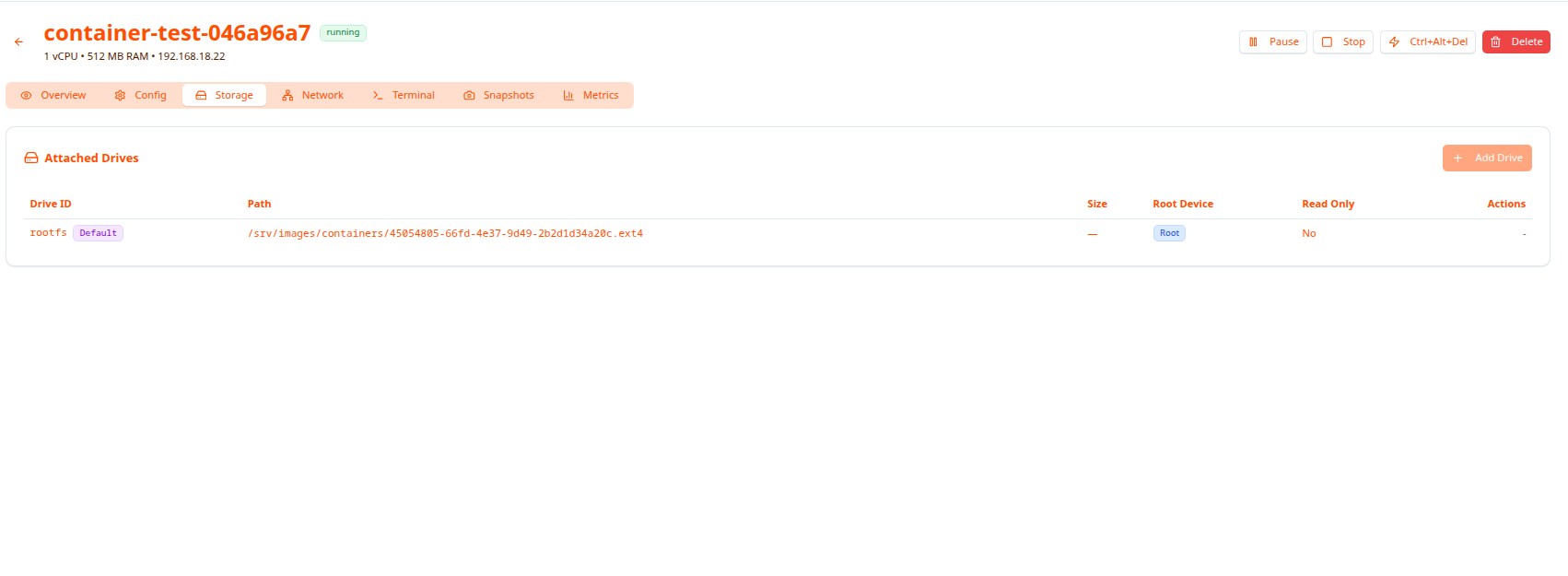
The Storage tab shows the Attached Drives table with columns:
| Column | Description |
|---|---|
| Drive ID | Identifier (e.g. rootfs) with a Default badge for the root drive |
| Path | Full path to the volume file on the host |
| Size | Volume size |
| Root Device | Root badge if this is the boot drive |
| Read Only | Whether the drive is mounted read-only |
| Actions | Detach button (not available for the root drive) |
Attachment modes
- Read-Write (default) — VM can read and write freely
- Read-Only — VM can only read; useful for shared reference data
After attaching
Stop and restart the VM if it was running, then mount the volume inside:
  # Find the new block device
lsblk

# Mount it
sudo mkdir -p /mnt/data
sudo mount /dev/vdb /mnt/data

# Make permanent via /etc/fstab
sudo blkid /dev/vdb
# Add: UUID=... /mnt/data ext4 defaults 0 2
Detaching a Volume
Before detaching, unmount the volume inside the VM and stop the VM:
  # Stop any apps using the volume
sudo systemctl stop myapp

# Unmount
sudo umount /mnt/data

# Confirm unmounted
mount | grep /mnt/data
Then click the detach icon in the Actions column of the Storage tab.
The root drive (
Default) cannot be detached.
Detached volumes return to Available status and can be attached to a different VM.
Deleting a Volume
Go to Volumes in the sidebar, find the volume, and click Delete.
Requirements before deleting:
- Volume must not be attached to any VM (check the VMs column shows
0) - Back up any data you want to keep — deletion is permanent
Common Tasks
Move a volume between VMs
- Stop VM1
- Unmount the volume inside VM1
- Detach from VM1 via the Storage tab
- Open VM2’s Storage tab → Add Drive → select the volume
- Start VM2 and mount the volume
Share read-only data across VMs
Attach the same volume to multiple VMs in Read-Only mode. Each VM can read the data; none can modify it.
Free up server storage
- Go to Volumes, filter to show only unattached volumes
- Sort by size to find the largest candidates
- Confirm with your team, then delete
Troubleshooting
Volume not visible inside VM after attaching
Stop and start the VM — hotplug may not be supported for all configurations.
Mount fails
  # Check filesystem type
sudo blkid /dev/vdb

# Check if already mounted
mount | grep vdb

# Try specifying the type explicitly
sudo mount -t ext4 /dev/vdb /mnt/data
Cannot detach
- You cannot detach the root (
Default) drive - Stop the VM first, then detach
- Make sure the volume is unmounted inside the VM
Accidentally deleted a volume
Contact your administrator immediately — the file may still be recoverable on disk before it is overwritten.
Next Steps
- Create Volumes — Add new storage volumes
- Browse Volumes — Search and filter all volumes